Gantt Software for Construction Projects
Construction teams use Instagantt to manage every build phase on a visual Gantt chart. Coordinate trades, track material deliveries, schedule inspections, and monitor progress against baselines. Dependencies between tasks automatically adjust when one phase runs long.





Trusted by 25,000+ Teams across the Globe
Plan Your Build Phases
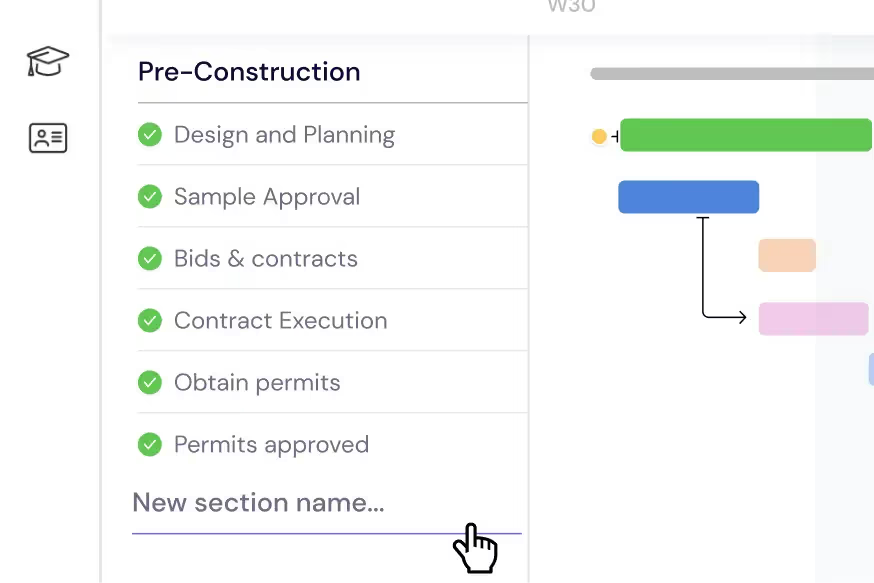
Break down your construction project into manageable tasks and subtasks that map to your actual build sequence. Organize each phase — from site preparation, demolition, and excavation through foundation, framing, MEP rough-in, insulation, drywall, painting, flooring, fixtures, and punch list — into clear sections with deadlines, dependencies, and inspection milestones on your Gantt chart. Instagantt's drag-and-drop interface makes it easy to adjust construction schedules when change orders come in, weather delays occur, or material deliveries are rescheduled. Use the AI Assistant to generate initial build plan structures from a project description, then customize task details to match your specific construction workflow.
Manage Crews & Subcontractors
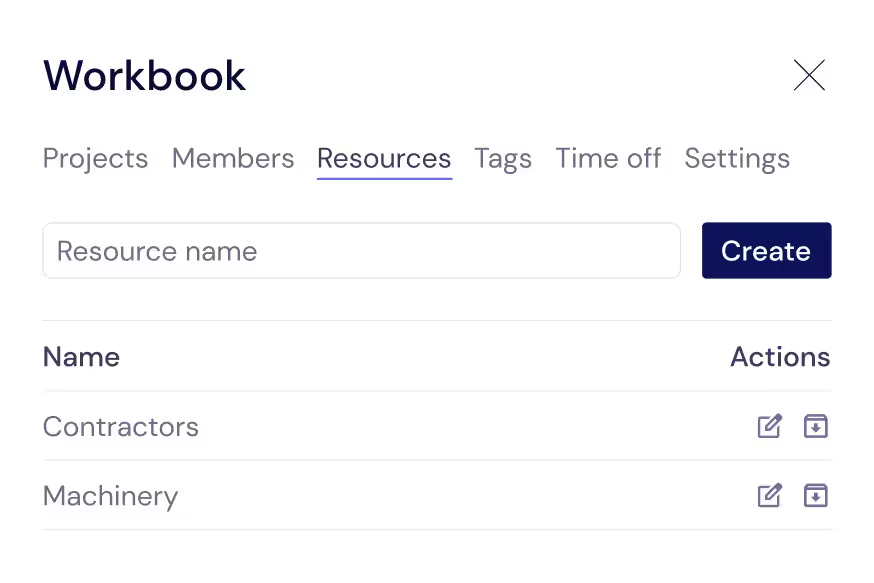
Track every resource that keeps your job site running — general laborers, carpenters, electricians, plumbers, HVAC technicians, roofers, concrete crews, and specialty subcontractors. Assign each trade to specific tasks with estimated durations so you can see site capacity at a glance. When you need to add a crew for a time-sensitive phase or coordinate multiple subcontractors working simultaneously, Instagantt's workload visualization shows exactly when each trade is scheduled and where scheduling conflicts exist. This comprehensive resource view prevents the double-booking and trade conflicts that cause expensive delays, idle crews, and missed inspection windows.
Balance the Job Site Workload
Distribute tasks across crews and trades to prevent scheduling conflicts, maximize site productivity, and minimize costly downtime. Monitor crew workloads directly on your Gantt chart — color-coded indicators show when trades are scheduled, when site capacity is at its limit, and when gaps in the schedule create idle time. Switch to the dedicated Workload View for a comprehensive dashboard that makes it easy to rebalance assignments across active job sites in real time. Coordinated scheduling reduces trade conflicts, minimizes the time crews spend waiting for predecessor work to complete, and keeps your project moving toward completion milestones.

Get a Site-Wide Overview
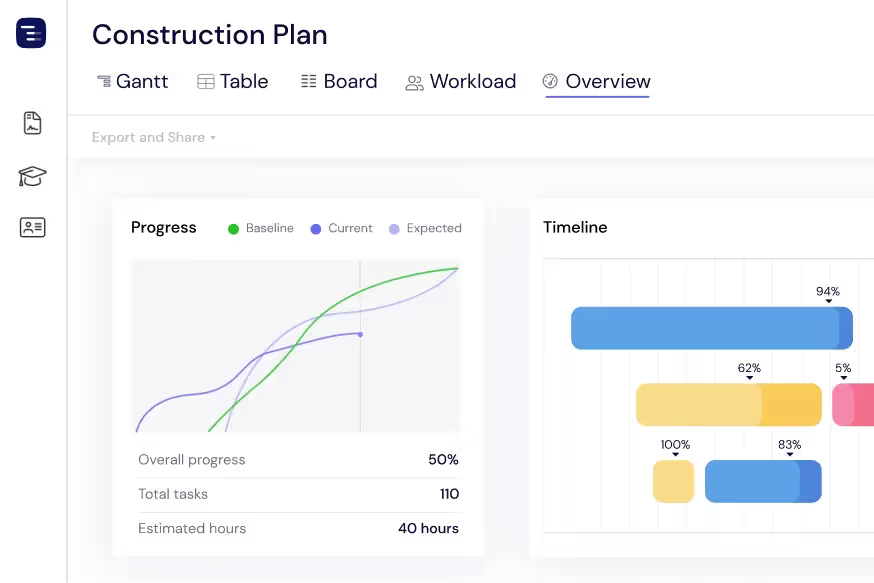
See every active project, job site, and trade schedule at a glance with the Overview View. Monitor construction progress against contractual milestones, track upcoming inspections and permit deadlines, and review crew availability without getting lost in individual task details. Switch between Gantt, Table, and Board views depending on the information you need. The Overview View is invaluable during daily site coordination meetings, weekly owner updates, and project portfolio reviews where construction managers need to communicate the status of multiple builds simultaneously.
Share Progress with Clients & Owners
Export construction timelines as PDF for owner presentations, PNG for progress documentation, or spreadsheets for detailed analysis and cost reporting. Instagantt's Public Snapshot feature generates shareable URLs that give property owners, general contractors, investors, and lenders a live, read-only view of your build schedule. Owners can check construction progress without visiting the site or calling your team, and lenders can verify milestone completion for draw requests. This transparency builds client confidence, streamlines communication, and provides documented evidence of project progress.
Track Inspections and Permits
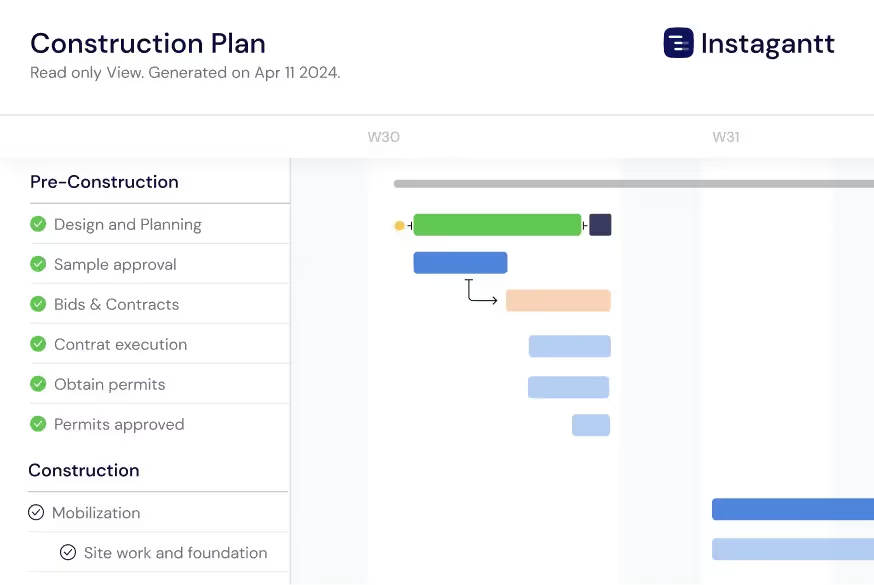
Schedule building inspections, permit applications, and regulatory checkpoints throughout your construction timeline with clear dependencies to prerequisite work. Connect inspection milestones to the construction tasks that must be completed before each inspection can pass — framing inspection requires framing completion, electrical rough-in inspection requires wiring installation. Track inspection request lead times and schedule them proactively so inspectors do not become a bottleneck in your build sequence. When an inspection fails, immediately see the impact on downstream phases and adjust your schedule accordingly.
Manage Material Deliveries
Track every material order from purchase requisition through supplier confirmation, shipping, and on-site delivery on your project timeline. Link material delivery dates to construction tasks with dependencies so you can see immediately when a late shipment will delay work. Long-lead items like structural steel, custom windows, specialty mechanical equipment, and imported fixtures can be tracked months in advance to ensure they arrive before the trade crew that needs them. When a supplier delays a shipment, the Gantt chart automatically shows the cascade effect on your construction schedule.
AI-Powered Build Planning
Describe your construction project in plain English and let the AI Assistant generate a complete build plan with phases, tasks, subtasks, estimated durations, and trade dependencies. Say something like 'Plan a 3-bedroom residential construction with site prep, foundation, framing, MEP, drywall, finishing, and landscaping phases' and receive a professional construction schedule in seconds. Refine the generated plan with follow-up prompts, then save it as a template for similar builds. The AI understands construction concepts like trade sequencing, inspection gates, and weather buffers.

Compare Schedules with Baselines
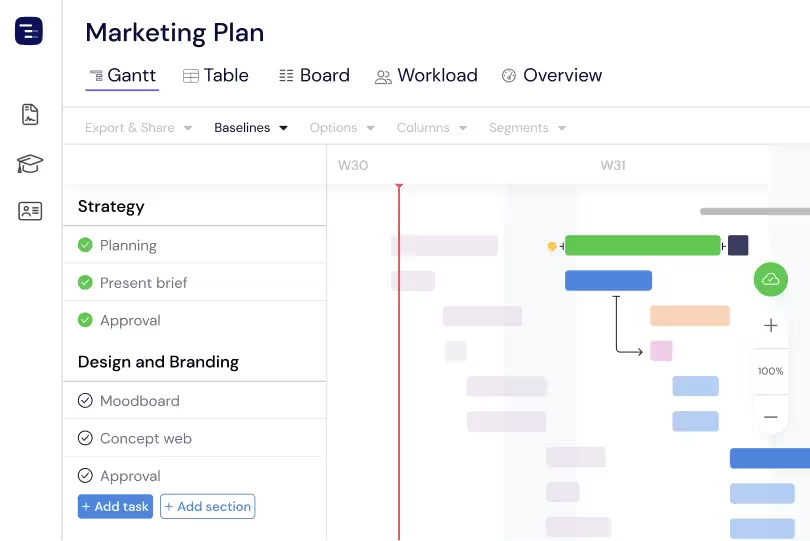
Create baseline snapshots of your construction schedule at contract signing, groundbreaking, or any major milestone and compare the original plan against actual progress throughout the build. Baselines make schedule drift visible and quantifiable — see which phases started late, which trades took longer than estimated, and how weather delays and change orders have shifted the overall timeline. This plan-versus-actual comparison is essential for construction managers who need to document schedule changes for contract compliance, justify timeline extensions, improve estimating accuracy for future projects, and maintain accurate project documentation. The visual baseline overlay makes schedule changes immediately apparent to all stakeholders.
Multiple Views for Construction Teams
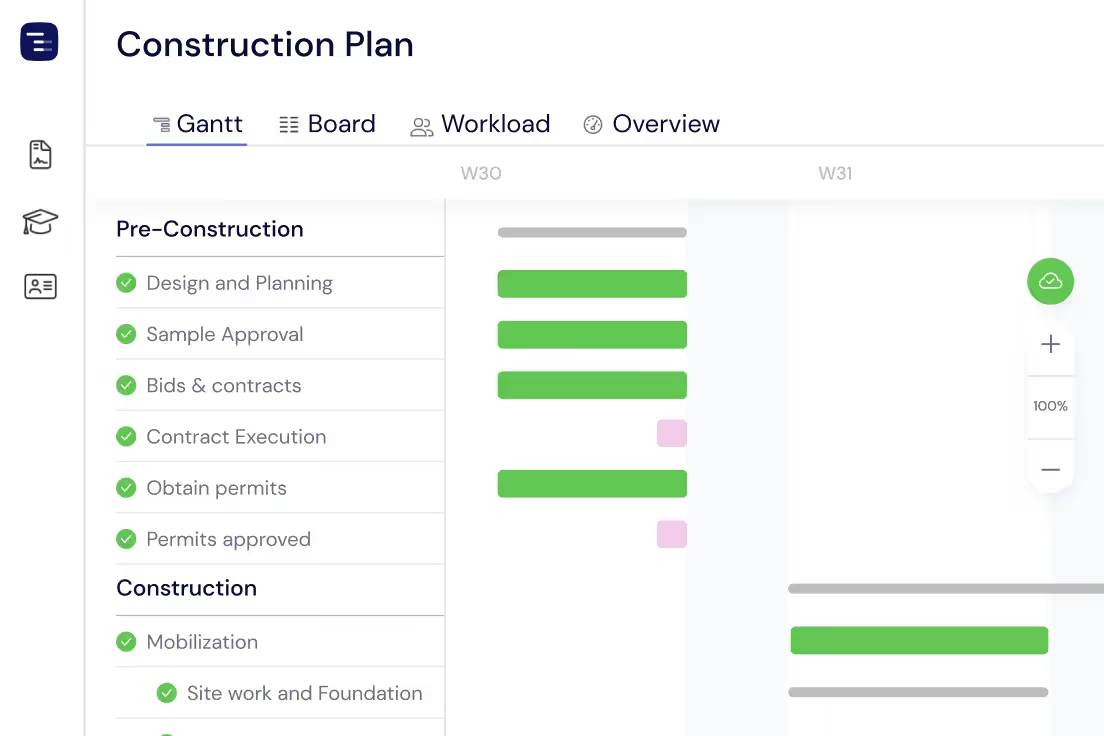
Switch between Gantt chart, Table View, Board View, and Overview depending on the information your construction team needs. Use the Gantt chart for detailed phase planning with trade dependencies, the Table View for material tracking and cost analysis, the Board View for punch list and inspection management, and the Overview for site-wide progress reporting. Each view shows the same project data from a different perspective. Site managers can run daily coordination meetings using the Gantt chart and generate owner reports from the Overview without maintaining separate documents or spreadsheets.
Custom Fields for Construction Data
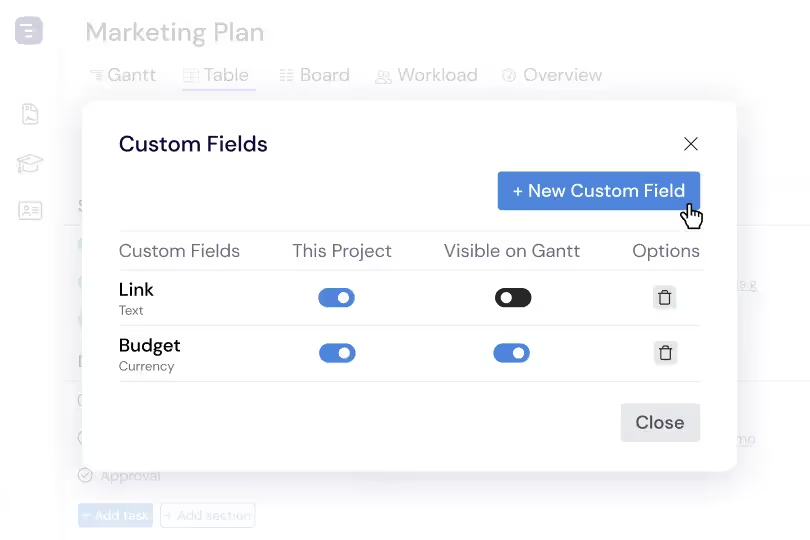
Add custom fields to capture construction-specific data like cost per task, trade classification, permit status, inspection result, change order number, and contract reference. Custom fields appear in the Table View as sortable, filterable columns, making it easy to generate reports by trade, analyze cost distribution by phase, or track permit approval status across all construction activities. This construction-specific data layer transforms your Gantt chart from a simple timeline into a comprehensive project management system tailored to how construction projects are actually managed and reported.