Data Import
Import in .csv or Sync from Asana
Bring your project data into Instagantt from CSV files, Excel exports, or directly from your Asana workspace. The import wizard maps columns automatically, preserves task structure, dates, and assignments, and creates your Gantt chart in minutes. Migration takes minutes, not days.





Trusted by 25,000+ Teams across the Globe
Asana Sync
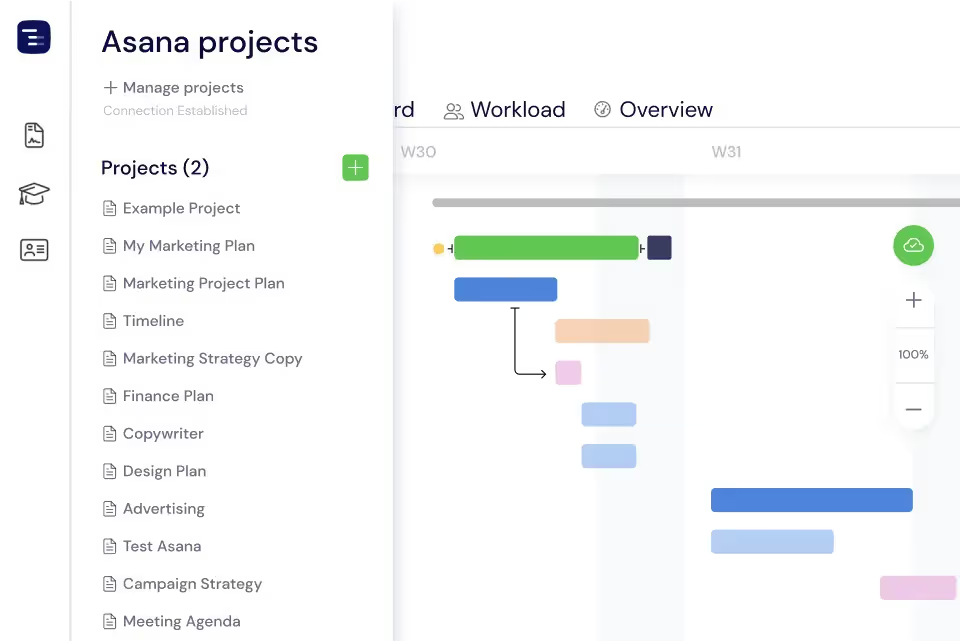
Turn your Asana projects into a visual Gantt chart by connecting through the Instagantt for Asana version. Sync projects, tasks, subtasks, and supported custom fields with one click, and keep your timeline aligned as updates happen in Asana. With a dynamic Gantt view of your work, you can plan, adjust, and track progress more effectively — without duplicating effort across tools.
CSV Import
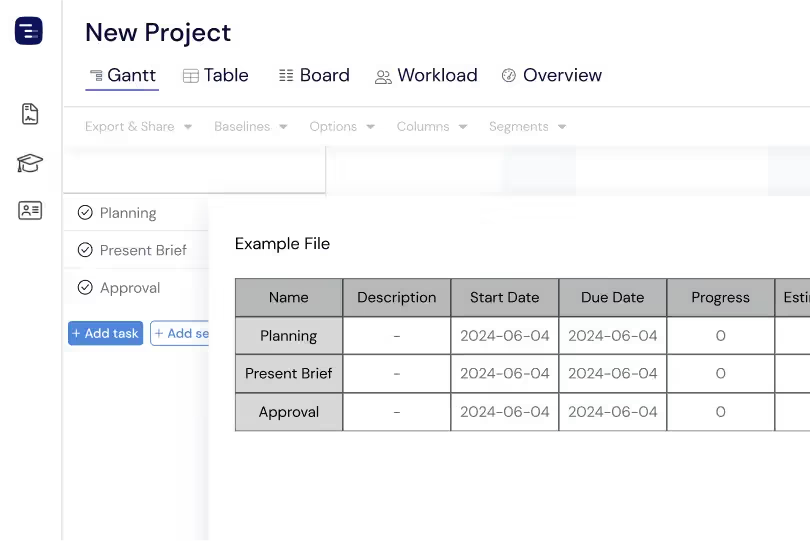
Upload your project data from any spreadsheet, project management tool, or custom system using a CSV file. The Instagantt import wizard automatically detects columns and suggests field mappings, then builds your Gantt chart in seconds. The CSV import handles thousands of tasks in a single file and carries complex data — dates, durations, estimated hours, cost, priority, and risk. Preview the import results before confirming to make sure every field maps correctly.
Import Tasks in Seconds
Expand your projects instantly by importing tasks in bulk from CSV files. Load entire task lists into the Gantt chart in seconds and skip manual data entry, so you can move from planning to execution far faster. Whether you're building a new project or scaling an existing one, CSV import lets you grow your plan effortlessly and keep the whole project moving forward.
Migration from Other Tools
Switching from Microsoft Project, Smartsheet, Monday.com, or any other project management tool? Export your data as CSV and import it into Instagantt in minutes. The column mapping step handles different formats and naming conventions, while the date parser automatically recognizes regional date formats. Your timeline data carries over intact, so you can start working in Instagantt immediately — no rebuilding project plans from scratch.
Template Library for Quick Starts
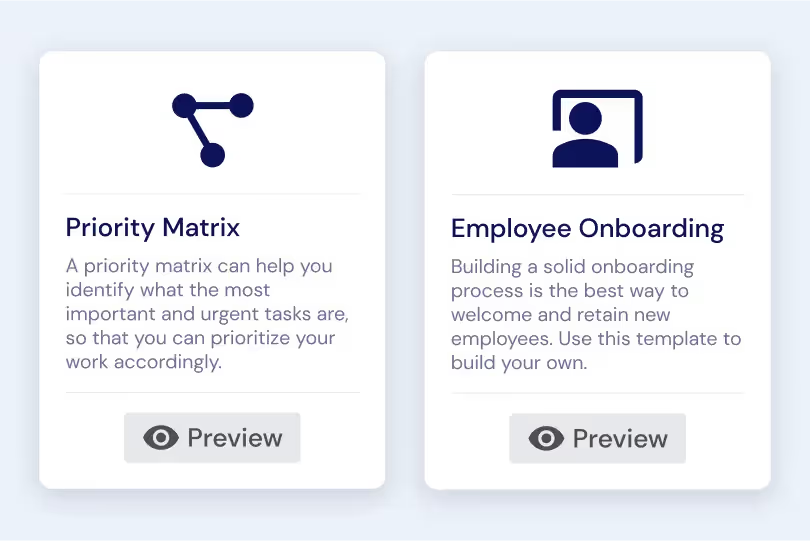
Browse a library of pre-built project templates organized by industry and use case. Select a template — marketing campaign, software release, product launch, construction project, or event planning — and instantly create a new project with a professional task structure, realistic durations, and common dependencies already in place. Templates combine the speed of import with the expertise of proven project structures, giving new users a head start and experienced users a time-saving shortcut for repetitive project types.
Key Capabilities
Everything you need, nothing you don't.
CSV Import
Upload a CSV file with tasks, dates, assignees, and any other project data — Instagantt maps columns automatically using intelligent field detection. Export from Microsoft Project, Excel, Google Sheets, or any other tool that supports CSV, and have your Gantt chart created in minutes. The import wizard guides you through column mapping to ensure every data point lands in the right field.
Asana Sync
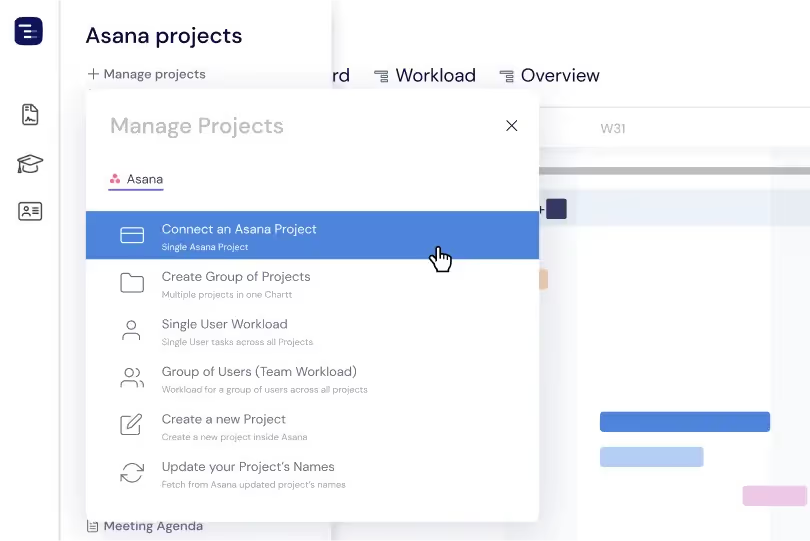
Connect your Asana workspace through the Instagantt for Asana version and instantly turn your projects into a visual Gantt chart. Sync tasks, subtasks, assignees, due dates, and supported custom fields, and keep your timeline aligned as updates happen in Asana. With a dynamic view of the work, you plan smarter, track progress with confidence, and share a polished Gantt timeline with stakeholders — without changing how your team already works.
Column Mapping
Map your CSV columns to Instagantt fields with a visual interface that makes it clear which source data maps to which destination field. Instagantt suggests mappings based on column names and data types, and you can adjust them manually before confirming the import. This flexibility handles CSV files from any source tool or custom format.
Date Parsing
Instagantt automatically recognizes common date formats from your CSV data including MM/DD/YYYY, DD/MM/YYYY, YYYY-MM-DD, and many regional variations. The date parser handles multiple formats within the same file, so you do not need to standardize your dates before importing. Preview the parsed dates before confirming to ensure everything is correct.
Bulk import
Import tasks in bulk from CSV files to build or expand your projects without manual data entry. Pull in entire task lists in seconds and keep your planning process moving smoothly. Whether you're starting a brand-new Gantt chart or adding more work to an existing project, CSV import makes it simple to scale your plans and get everything into Instagantt fast.
Cancel import
Made a mistake? Cancel the CSV import before it finishes if something doesn't look right — like incorrect column mapping — so you stay in control from the very first step. If tasks are already in, you can quickly remove them in bulk to reset the project and try again. This flexibility lets you experiment with different import configurations without worrying about disrupting your project setup.
Explore More Features
Discover everything Instagantt has to offer for your project management workflow.