Task Management
Build Better Gantt Charts
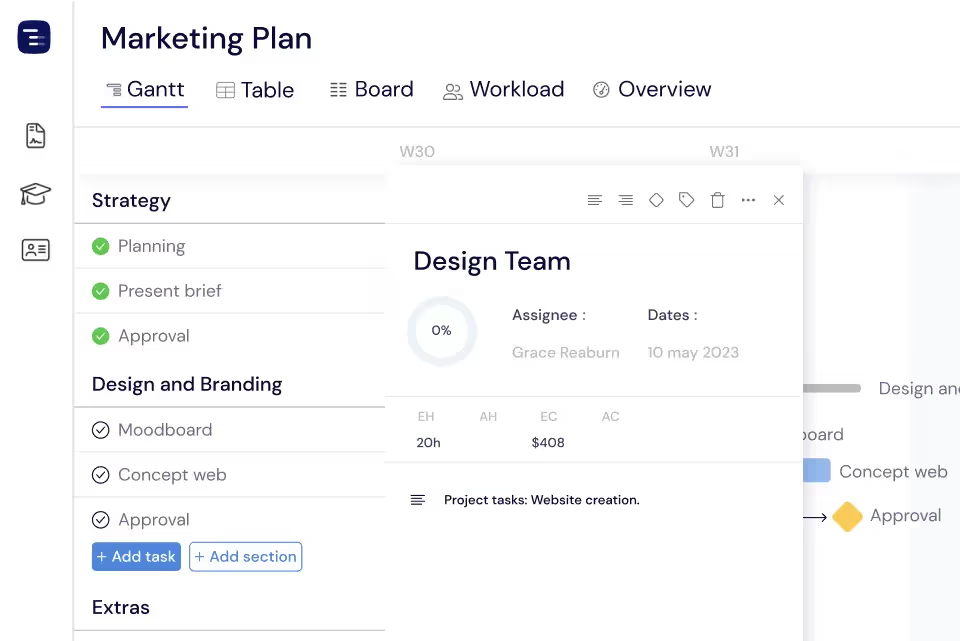
Instagantt's task management system lets you create, organize, assign, and track tasks with subtasks, dependencies, priorities, custom fields, and color coding. Drag and drop to schedule on your Gantt chart timeline, and use bulk actions to update multiple tasks at once. Scales from simple to-do lists to complex project structures.





Trusted by 25,000+ Teams across the Globe
Tasks & Subtasks
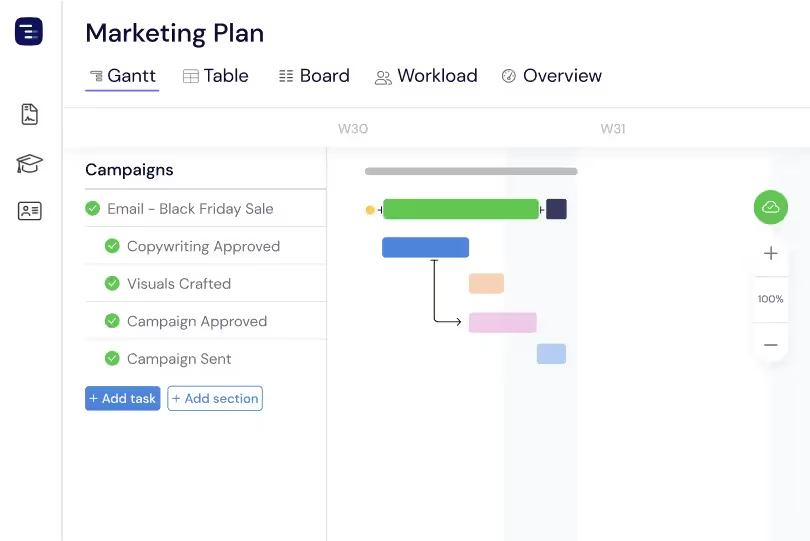
Break complex work into manageable subtasks with their own dates, assignees, and progress tracking. Each subtask appears as its own bar on the Gantt chart beneath its parent task, giving you a clear visual hierarchy. Expand and collapse task hierarchies to see exactly the level of detail you need — zoom in for granular tracking or collapse to see the big picture. Progress from subtasks rolls up to parent tasks automatically.
Customize Task Colors
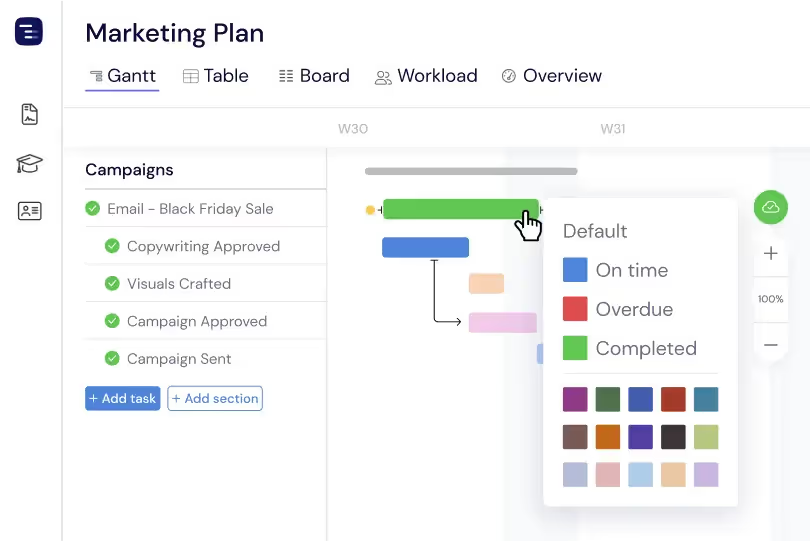
Assign colors to tasks by section, priority, status, or any custom attribute to create a visually organized Gantt chart. Color coding makes it possible to scan your timeline and instantly identify task categories, priority levels, and project phases. Choose from a palette of colors and apply them consistently across your project for a professional, easy-to-read chart.
Drag & Drop Task Scheduling
Schedule or adjust tasks just by dragging the task bar on the Gantt chart. Resize a bar's edge to change its duration, drag the entire bar to shift its dates, and drop tasks between sections to reorganize your project structure. The drag-and-drop interface is simple, intuitive, and updates dependent tasks automatically so your timeline stays accurate.
Add Sections for Project Stages
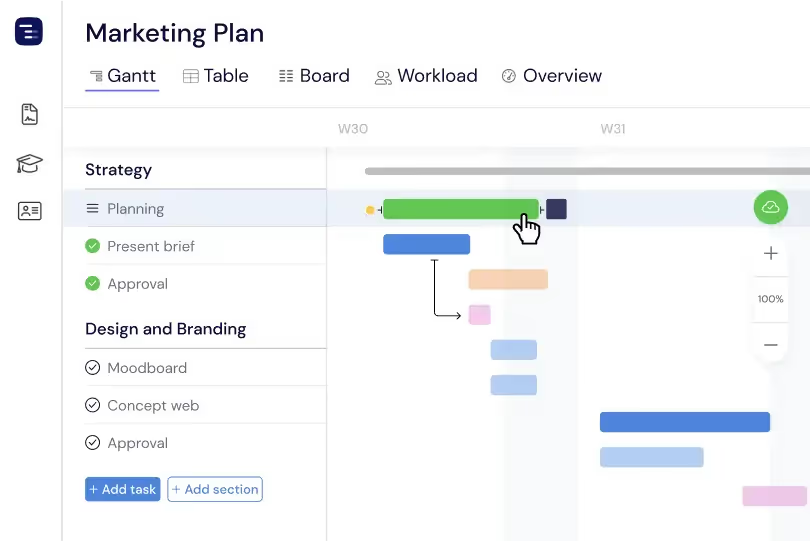
Organize your project into clear sections that represent phases, sprints, departments, or feature areas. Collapse completed sections to focus on active work and expand them when you need to review details. Sections bring structure to large projects and make it easy for team members to find their relevant tasks quickly without scrolling through the entire project.
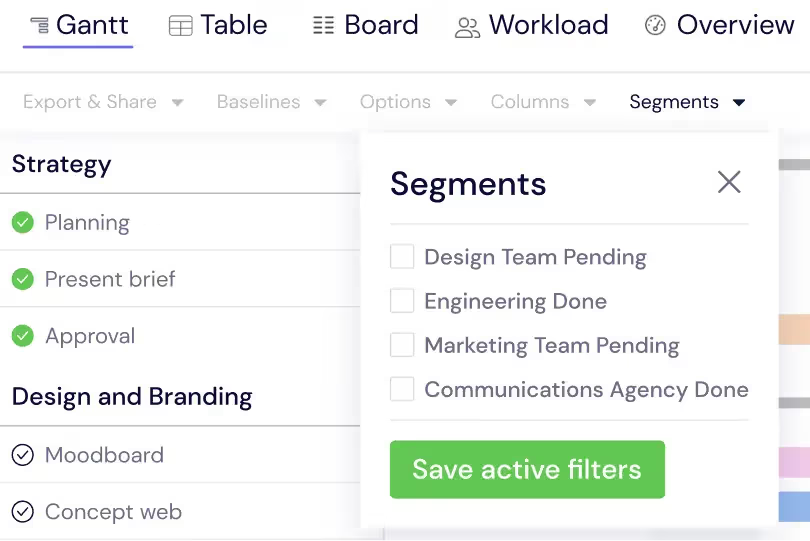
Bulk Actions With Multiple Selection
Select multiple tasks at once to move, delete, reassign, or update them in bulk. Bulk actions save real time on large projects — shift an entire phase's deadlines by two weeks, reassign every task from one teammate to another, or apply a tag to a set of tasks to differentiate them from the rest. This kind of efficiency is essential for project managers coordinating hundreds of tasks at once.
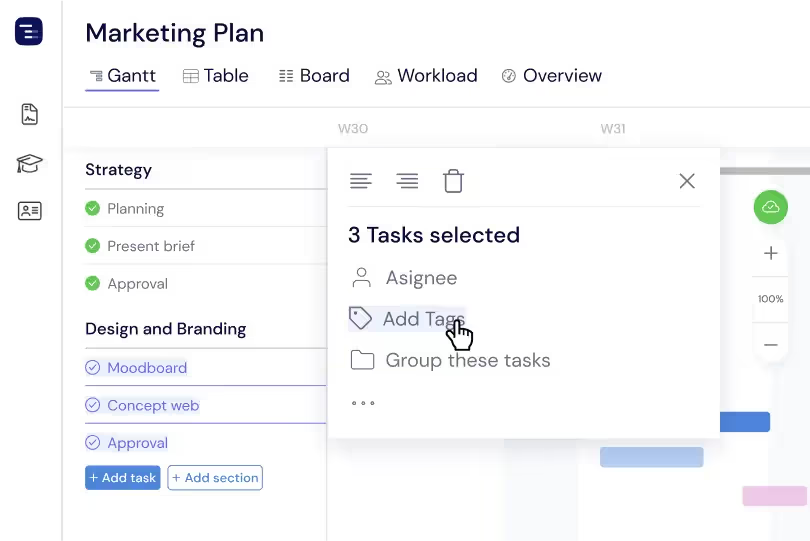
Assign Tasks for Better Collaboration
Assign tasks to team members with a single click and see who is responsible for what across your entire project. Each person's avatar appears on their assigned tasks in the Gantt chart, providing clear visual ownership. Team members receive notifications when they are assigned new work, and the Workload View helps managers ensure assignments are distributed evenly.
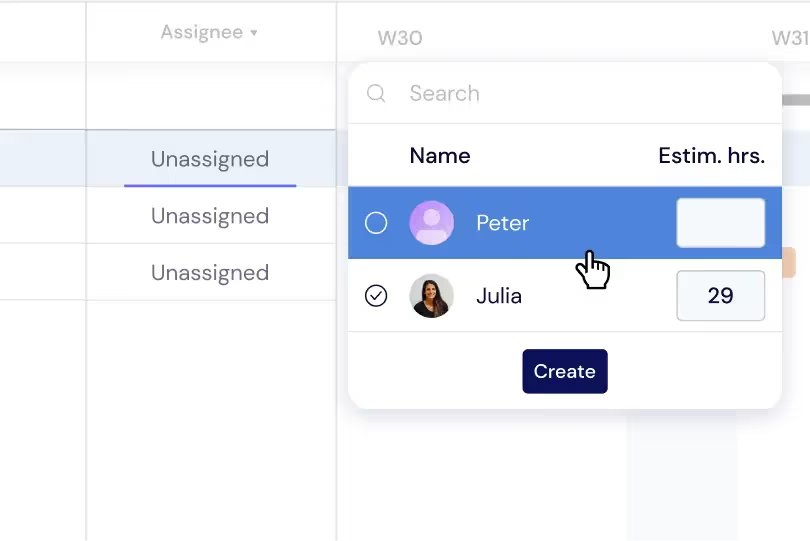
Filtering & Sorting
Filter tasks by assignee, status, priority, date range, section, or any custom field to focus on exactly the subset of your project you need to see. Sort your view by any column to surface the most critical, overdue, or upcoming tasks first. Save frequently used filter combinations as Segments for instant access to your most important project perspectives.
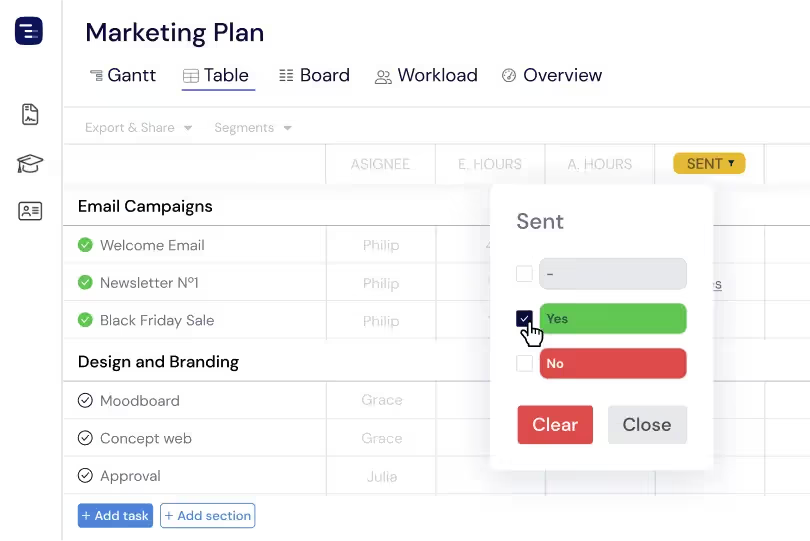
Manage Priority & Risks Levels in Your Projects
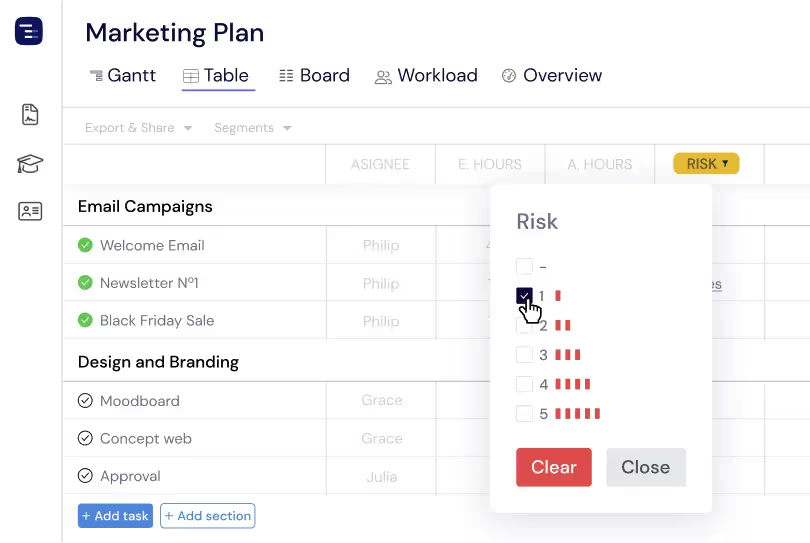
Set priority and risk levels on every task to keep your team focused on high-impact work and identify potential blockers before they derail the timeline. Priority indicators appear in green on the task list, making it easy to spot critical work at a glance. Risk levels help project managers proactively manage threats by flagging tasks with a high probability of delay or scope change.
Task Progress
Track task completion as a filled overlay on each Gantt bar that shows the percentage of work completed. See progress at a glance across your entire project — compare the progress fill to the current date position to identify tasks that are behind schedule. Progress data rolls up from subtasks to parent tasks and from tasks to project-level metrics in the Dashboard.
Task Templates for Recurring Work
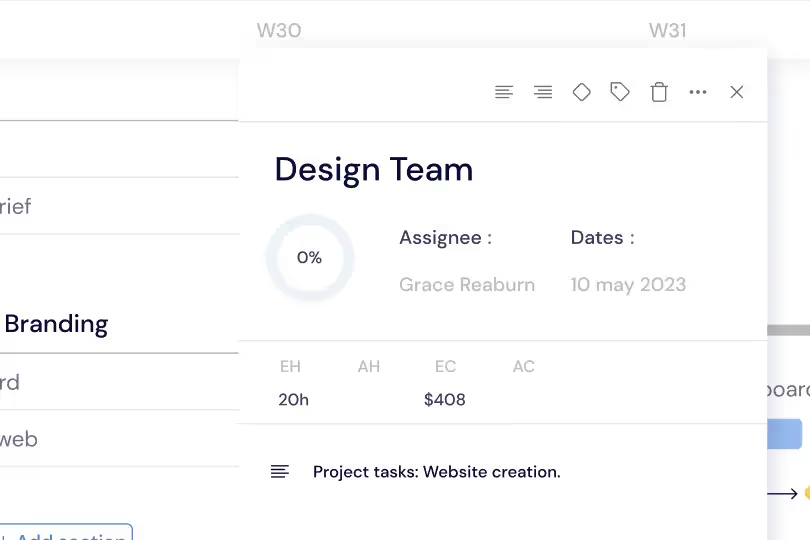
Save frequently used task structures as templates that include subtask hierarchies, default assignees, estimated hours, and custom field values. When recurring work items need to be created — weekly reports, sprint ceremonies, or client deliverables — insert a task template to create the complete structure in one click instead of manually recreating tasks every time.
Key Capabilities
Everything you need, nothing you don't.
Subtasks
Break tasks into subtasks with their own dates, assignees, progress tracking, and custom field values. Subtasks let you decompose complex deliverables into granular work items without losing the connection to the parent task. Progress rolls up from subtasks to parent tasks automatically, giving you accurate completion data at every level.
Custom Fields
Add text, number, dropdown, progress, currency, or checkbox custom fields to capture any information your team needs to track. Custom fields show up as sortable columns in the Gantt and Table View and can power filtering, Segments, and reporting for any project-specific attribute.
Task Details
Each task has a rich detail panel with description, file attachments, comments with mentions, and a complete activity log. The task detail panel gives you full context about the work item without cluttering the Gantt chart view. Attach files, leave notes for team members, and review the complete history of changes.
Priorities
Set task priority levels and use priority to filter, sort, and visually identify the most important work in your project. Priorities appear as green indicators on the task list, making it easy for team members to focus on high-impact tasks first.
Milestones
Mark key tasks as milestones that are displayed as diamond shapes on the timeline. Milestones represent important checkpoints like project kickoffs, deliverable deadlines, client reviews, and launch dates. They provide visual anchors on your Gantt chart that help everyone understand the project's major dates.
Sections
Group tasks into collapsible sections that organize your project by phase, sprint, department, feature area, or any logical grouping. Sections keep large projects navigable by letting you collapse completed phases and focus on active work. Each section can have its own color, making your Gantt chart visually organized.
Explore More Features
Discover everything Instagantt has to offer for your project management workflow.