PDF and Image Export
Sometimes you need your plan outside Instagantt — in a client presentation, a printed handout or a status report. The Image or PDF export creates a polished, print-ready picture of your timeline, and its live preview shows you exactly what you’ll get before you download it.
🧭 Table of Contents
- How to Export Your Gantt Chart as an Image or PDF
- Export Options Explained
- Tips for Better Exports
- Summary
- Frequently Asked Questions (FAQ)
⬇️ How to Export Your Gantt Chart as an Image or PDF
- Open your project.
- Click Export & share at the top of the chart.
- Choose Image or PDF.
- Adjust the options on the left — the preview on the right updates as you go.
- Click Export PDF (or Export image for PNG) to download the file.
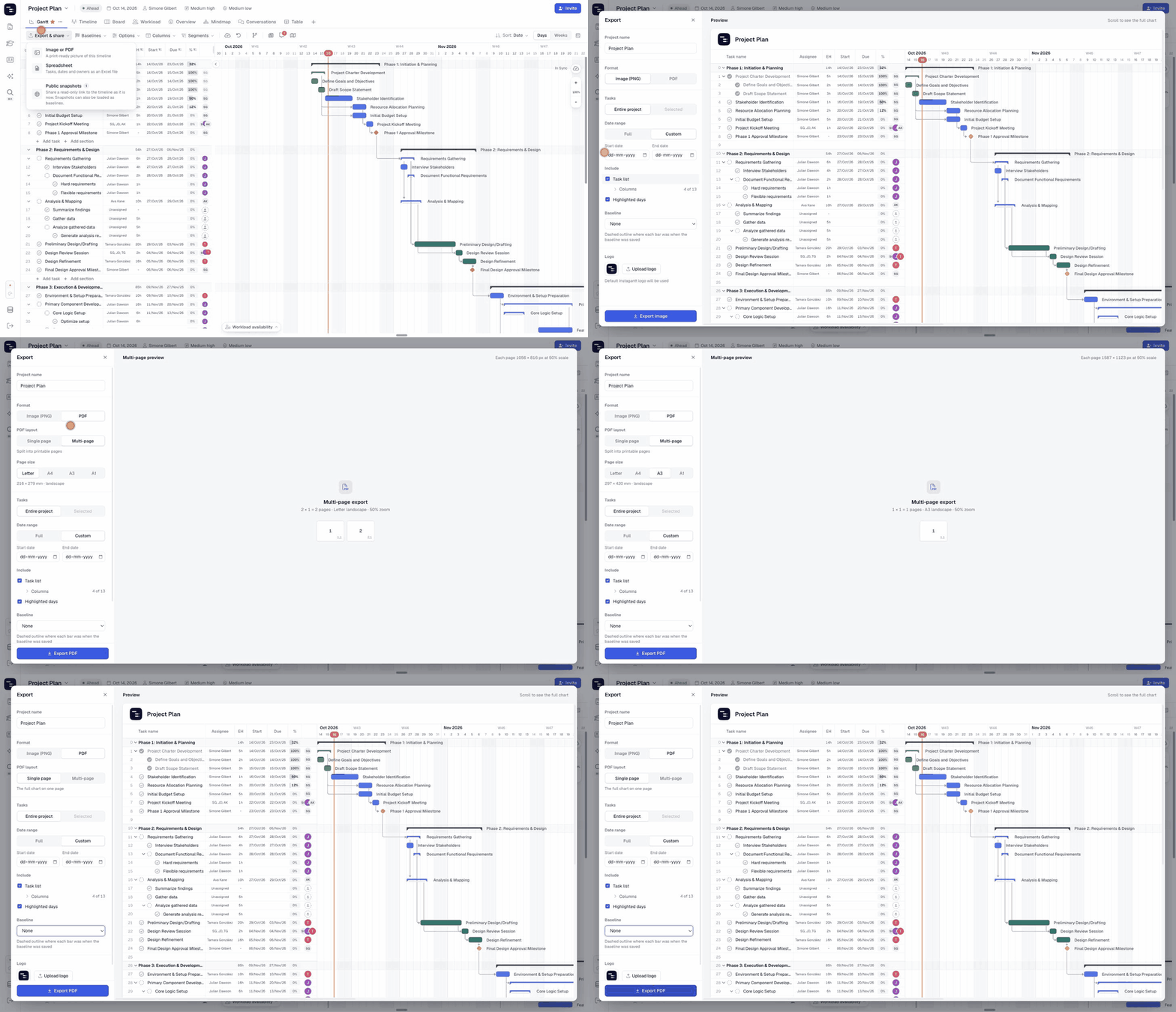
⚙️ Export Options Explained
- Project name — the title printed at the top of the export. Change it without renaming the project.
- Format — Image (PNG) or PDF.
- PDF layout — Single page fits the full chart on one page; Multi-page splits it into printable pages. With Multi-page, choose a Page size (Letter, A4, A3 or A1) and the preview shows how many pages you’ll get.
- Tasks — Entire project, or only the Selected tasks. To export only some tasks, select them in the chart before opening the export: hold ⌘ (Mac) or Ctrl (Windows) to pick individual tasks and sections, or Shift to select a range.
- Date range — Full project, or a Custom start and end date.
- Include › Task list — show or hide the task list next to the chart. Expand Columns to choose which columns are printed.
- Include › Highlighted days — show or hide holidays and highlighted days.
- Baseline — overlay a saved baseline to compare plan and reality in the export.
- Logo — upload your company’s or your client’s logo. The Instagantt logo is used by default.
💡 Tips for Better Exports
- Use a Custom date range to focus on the current phase or quarter.
- Turn off the task list for a clean timeline in slides; turn it on with key columns for detailed reports.
- Add your client’s logo for external presentations.
- Use Multi-page PDF with A3 or A1 page size for large projects you plan to print.
📌 Summary
The Image or PDF export turns your Gantt chart into a professional document in seconds. Preview it live, choose exactly what to include, and download a PNG or PDF ready to share.
🚀 Share Your Plan Anywhere
Export your next status update as a PDF with your logo and the dates that matter — straight from your Gantt chart.
❓ Frequently Asked Questions (FAQ)
Can I export only part of my project?
Yes. Select the tasks and sections you want in the chart first (⌘/Ctrl + click for individual items, Shift + click for a range), then open the export and choose Selected under Tasks. You can also set a Custom date range.
Can I remove the task list from the export?
Yes. Untick Task list under Include.
Can I add my own logo?
Yes. Click Upload logo at the bottom of the options.
Can I include a baseline?
Yes. Pick a saved baseline in the Baseline dropdown to overlay it on the export.
Is there a spreadsheet export too?
Yes. Choose Spreadsheet in the Export & share menu. See our Spreadsheet Exports guide.