Tags
Tags in Instagantt help you organize tasks and subtasks using flexible labels that make filtering, searching, and reporting easier across projects. They are especially useful for task organization, cross-project filtering, and as a lightweight alternative to custom fields, particularly in Instagantt for Asana.They support clearer Gantt chart planning by adding contextual information without altering schedules or dependencies.
Tags work the same way in Instagantt Standalone and Instagantt for Asana, and when connected to Asana, they stay fully synced with Asana’s native tags.This ensures consistent project data visibility across tools.
🧭 Table of Contents
- What are tags in Instagantt?
- How tags work in Instagantt and Asana
- How to add and enable tags on tasks
- How to manage tags at the workbook level
- Filtering tasks using tags
- Using tags for organization and reporting
- Summary
- Frequently Asked Questions (FAQ)
🏷️ What Are Tags in Instagantt?
Tags are labels that can be applied to tasks and subtasks to help categorize work without affecting schedules, dependencies, or progress calculations.They provide an additional organizational layer within your online Gantt chart.
They are ideal for:
- Grouping related work (e.g. Design, Bug, Client A)
- Filtering tasks across multiple projects
- Improving visibility without adding structural complexityThis makes tags especially effective for high-level project tracking.
Tags do not:
- Apply to projects or sections
- Have colors
- React automatically to other task parametersThis keeps tags lightweight and easy to maintain.
🔄 How Tags Work in Instagantt
Tags behave the same way in both versions of Instagantt.This consistency simplifies collaboration across teams.
- In Instagantt Standalone, tags exist entirely within Instagantt.
- In Instagantt for Asana, tags are synced directly with Asana tags.Any tag added in Instagantt appears in Asana
- Any tag added in Asana appears in Instagantt
This ensures alignment between task management and Gantt planning. Tags can be especially valuable for Instagantt for Asana users who need better task categorization without relying on custom fields. It also improves traceability across tools.
🧩 How to Add Tags on Tasks
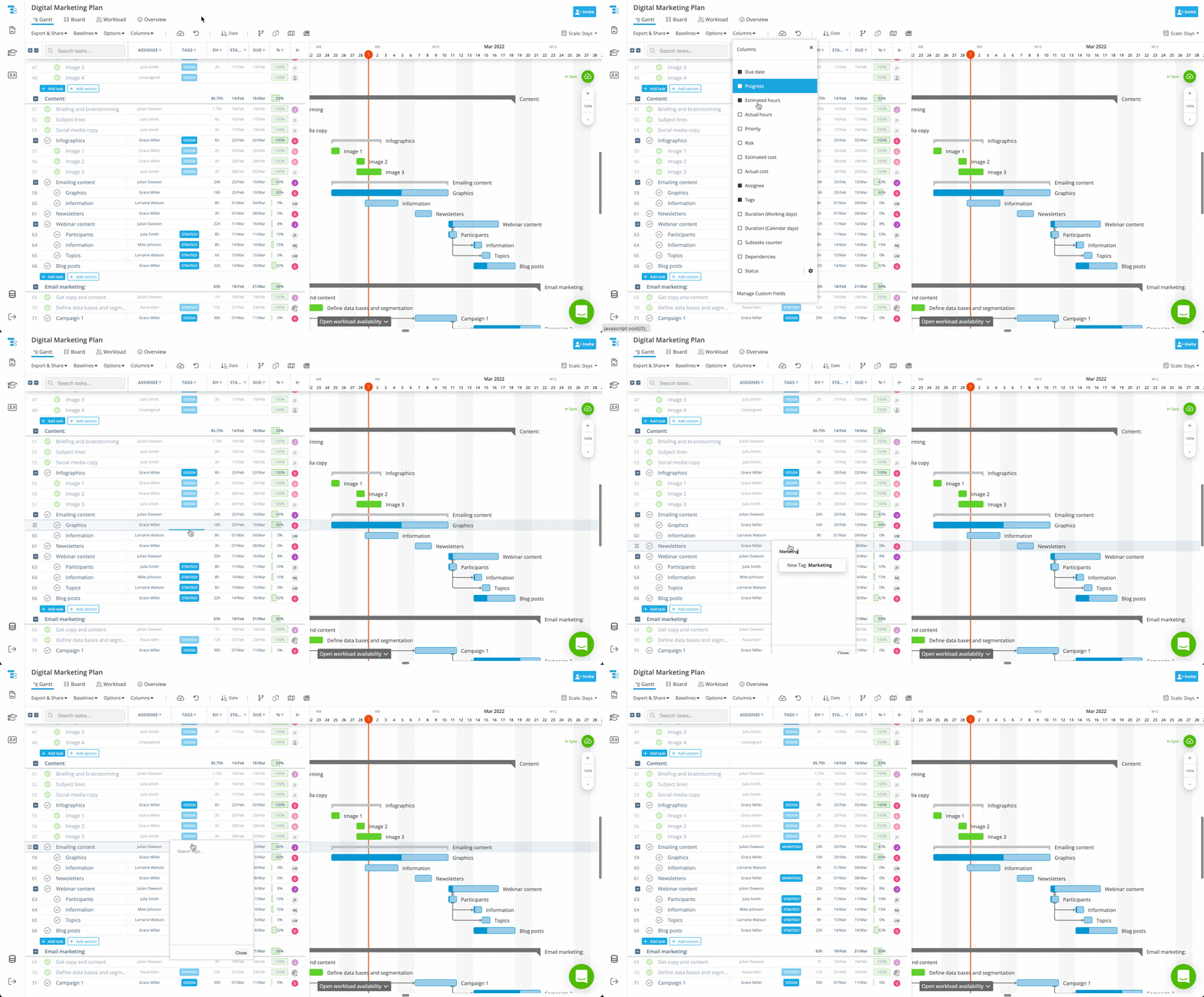
To work with tags in Instagantt, you first need to enable the Tags column and then assign tags to tasks or subtasks.This allows tags to be visible directly in the task list.
To enable the Tags column:
- Open the Columns menu
- Enable the Tags column
Once enabled, tags become part of your Gantt View (Task list) and can be added in two ways:
- Click on a task’s Tags cell
- Select an existing tag or create a new one on the flyThis is ideal for quick tagging during planning.
- Open a task
- Scroll to the Tags section
- Add or remove tags as neededThis method works across multiple views.
Tags can be reused across all projects within the same workbook or workspace. This encourages consistent labeling across your portfolio.
⚙️ How to Manage Tags on a Workbook (Standalone Only)
Tags are managed globally at the workbook level, making them available across all projects. This supports standardized project taxonomy.
To manage tags:
- Expand the left sidebar
- Click Settings
- Go to the Tags section
- Create, edit, or delete tags
All changes are automatically reflected across tasks and projects. This keeps your data up to date without manual rework.
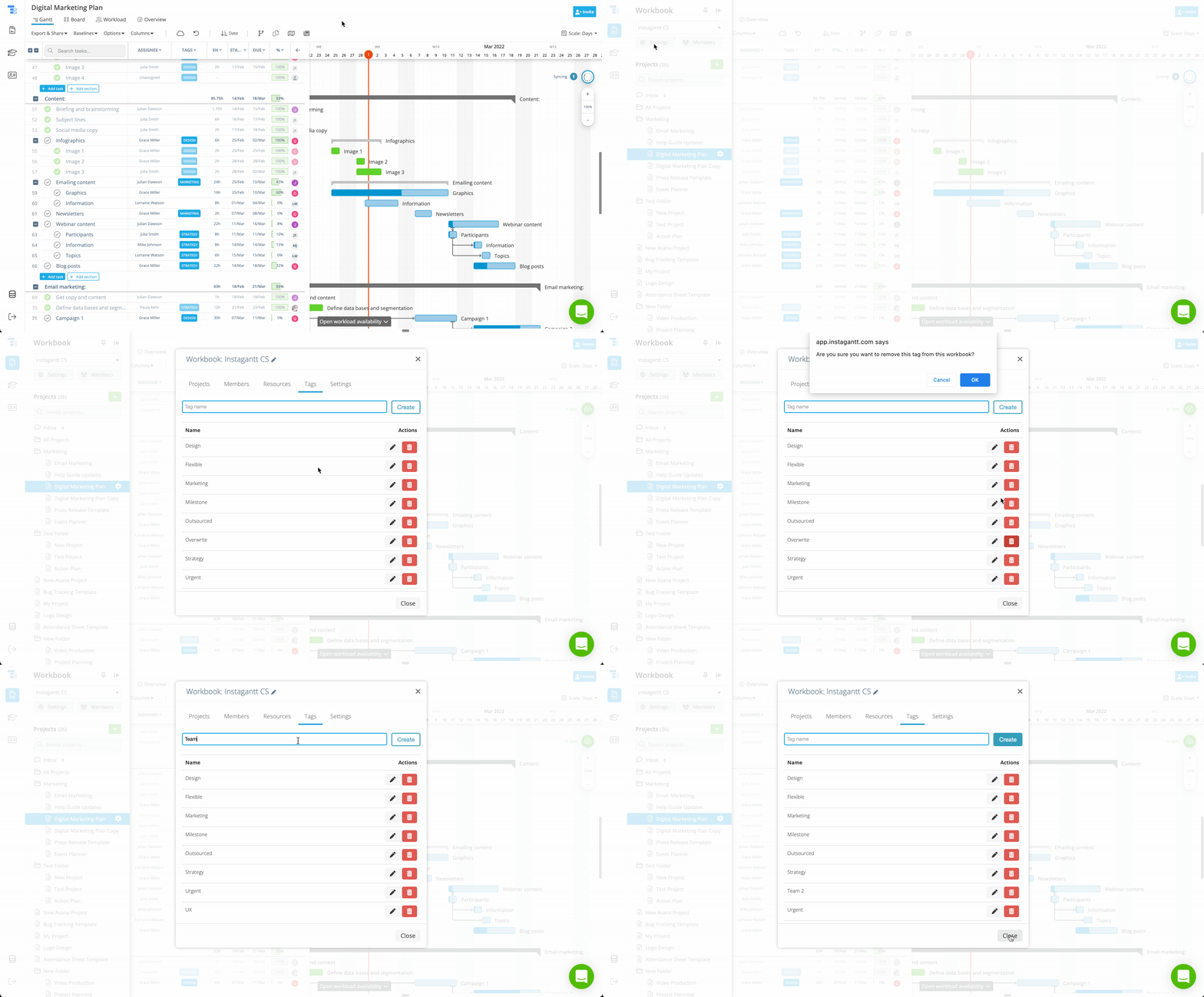
⚠️ Warning: Deleting a tag is irreversible. Once deleted, the tag is removed from all tasks permanently. This helps prevent outdated or unused labels from cluttering your workspace.
🛠️ How to Manage Tags in Instagantt for Asana
You can easily create new tags in Instagantt for Asana by following the steps explained in the first part of this article. But there's a high chance those tags could suffer modifications, so, how can you manage them after you've created them? Here's the answer: go to your Asana account, locate a task with the tag you want to manage and click on the tag. Then make any changes you'd like to that tag by clicking on the chevron icon next to its name, from changing its name to deleting it!
🔍 Filtering Tasks Using Tags
Tags can be used to filter tasks in all views, including:
- Gantt
- Table
- Board
- Workload
This makes it easier to focus on relevant work regardless of how you visualize your project.
Filtering by tags allows you to quickly surface relevant tasks across projects and timelines. When multiple tags are selected, Instagantt applies an OR logic, meaning tasks matching any of the selected tags will appear.This flexibility supports exploratory analysis and high-level planning.
This makes tags especially effective for cross-project visibility and flexible task grouping without over-restricting results.It is particularly useful in complex project management workflows.
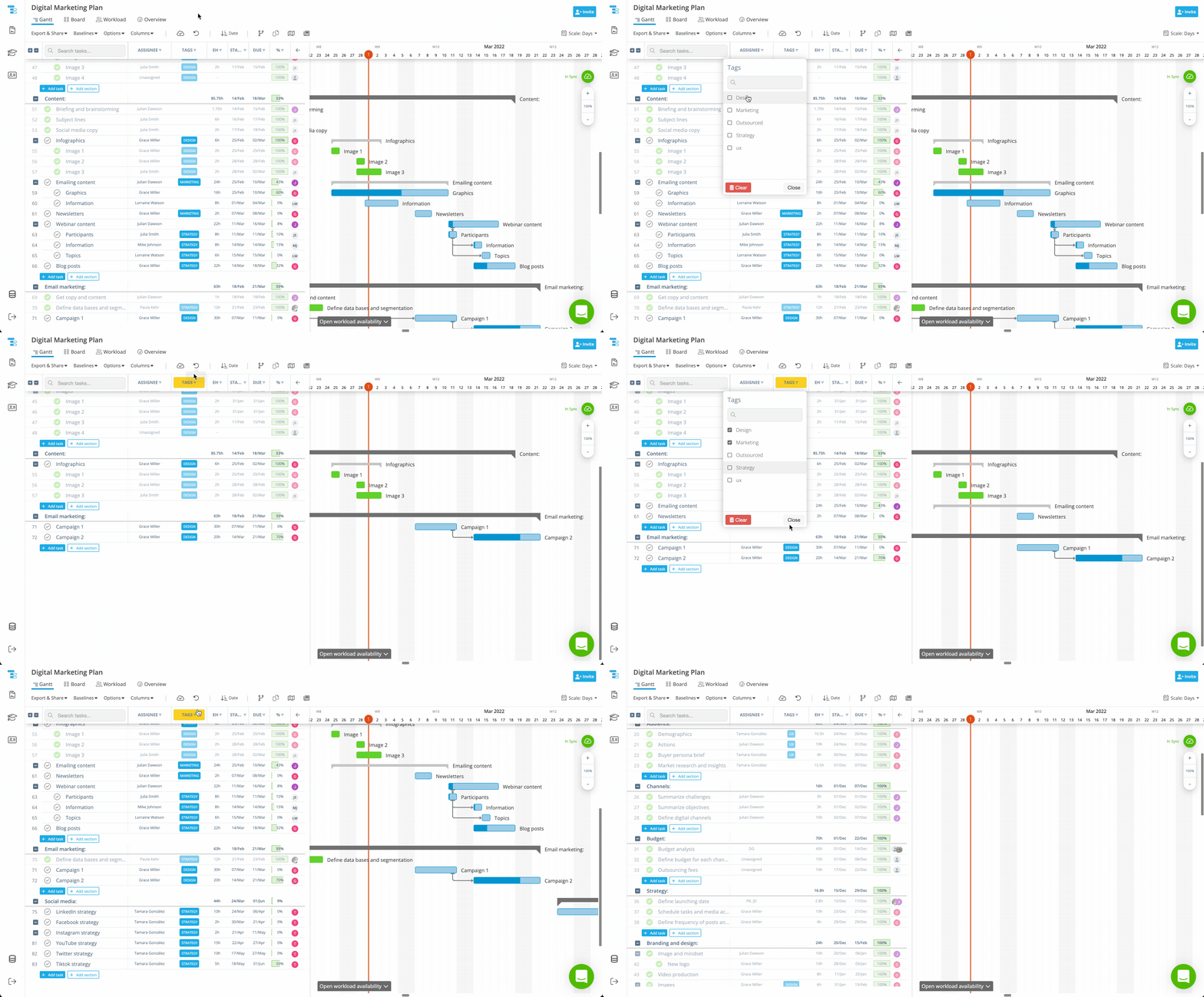
💡 Idea: A common and very effective practice is using a dedicated Milestone tag for key deliverables or critical dates. By tagging all milestone tasks consistently, you can quickly filter the Gantt chart by that tag to create a clear milestone-focused view of the project. This Milestone chart makes it much easier to review major deadlines, validate delivery timelines, and communicate progress at a high level without adding extra structure or complexity to your plan.
📊 Using Tags for Organization and Reporting
While tags do not appear in Dashboard or Overview, they play a key role in organizing work and supporting reporting workflows across projects.They help structure information before it reaches summary views.
Tags can be included in spreadsheet, PDF, and image exports as long as the Tags column is enabled on the chart, making them useful for sharing structured information with stakeholders.This improves communication and documentation.
For Instagantt for Asana users, tags are particularly valuable as a practical alternative to custom fields, which are not available inside Instagantt.They enable richer context without additional configuration.
By using tags consistently, teams can maintain categorization, improve filtering, and preserve context across both tools.This contributes to better Gantt chart clarity.
📌 Summary
Tags in Instagantt provide a simple but powerful way to organize tasks, filter work across projects, and improve visibility without adding complexity. They are fully synced with Asana, reusable across workbooks, and flexible enough to support multiple workflows.They enhance both task management and project planning.
🚀 Improve Task Organization with Tags
Use tags in Instagantt to streamline task organization, enhance cross-project filtering, and create a more structured project management workflow — whether you’re using Instagantt Standalone or Instagantt for Asana.
❓ Frequently Asked Questions (FAQ)
Can a task have multiple tags?
Yes. Tasks and subtasks can have multiple tags assigned at the same time.This allows more granular classification.
How does filtering work when selecting multiple tags?
Instagantt uses an OR logic, so tasks matching any of the selected tags will appear.This prevents overly restrictive filters.
Are tags synced with Asana?
Yes. In Instagantt for Asana, tags are fully synced with Asana’s native tags.Changes are reflected in both tools.
Can tags be used as custom fields?
Tags are not the same as Custom Fields. However, Tags can act as a lightweight alternative to custom fields, for categorization purposes,which can beespecially useful for Asana users working inside Instagantt.They provide flexibility without added complexity.