Custom Fields
Custom fields in Instagantt give you the power to customize your projects, add additional task data, and build workflows that fit your team's needs. They help you track project-specific details, categorize work, and structure information in ways that default task fields can’t. Understanding how custom fields, visibility, and activation work ensures you can build more accurate reports and a more flexible workflow.
🧭 Table of Contents
- What Are Custom Fields?
- 🛠️ Managing Custom Fields 2.1 Creating and Editing Custom Fields 2.2 Activation and Visibility Control of Custom Fields in Instagantt 2.3 Using Custom Fields to Filter and Track Work 2.4 Deleting Custom Fields (⚠️ Irreversible)
- Where Custom Fields Can Be Viewed
- Summary
- Frequently Asked Questions (FAQ)
💡 What Are Custom Fields?
Custom fields allow you to add personalized metadata to your tasks, making your workflow more flexible and better aligned with the unique needs of your projects. They help you capture information that isn't included in the default task fields and give you more control over how work is organized and analyzed. Custom fields are created at the workbook level, and each project can decide whether to activate or hide them based on relevance.
Below are the types of custom fields you can create, along with typical uses and examples to help you choose the right option:
📝 Text Great for open-ended information that doesn’t fit predefined categories, such as a client name, an external ID, a vendor or a location.
🗂️ Dropdown list Ideal for structured categorizations and consistent labeling, for example task type (Feature/Bug/Research), department, workflow stage or effort level.
🔢 Decimal number Useful for precise values requiring decimals, such as cost per unit or material measurements.
💰 Currency Designed for financial tracking such as budget allocation, contractor rates or monetary estimates.
🔟 Integer number Best for whole-number values like story points, revision count or number of assets.
✅ Checkbox Perfect for simple yes/no or true/false indicators, some examples include if an approval is required, if there's a required review or a blocked status.
📊 Percentage Helpful for percentage-based metrics, for example confidence level, ROI expectation or supplemental progress measures.
Adding the right mix of custom fields allows you to transform any project into a structured, searchable, and highly contextual workspace. Whether you're tracking financial inputs, categorizing task types, monitoring review cycles, or recording client details, custom fields give you the flexibility to build a workflow that reflects how your team actually works—without compromising clarity or control.
⚠️ Important: Instagantt does not support formulas or calculations between custom fields.
🛠️ Managing Custom Fields
🆕 Creating and Editing Custom Fields
To create a new custom field:
- Open the Columns menu.
- Click Manage Custom Fields.
- Click New Custom Field.
- Enter the field name and choose a field type from the dropdown.
Anyone who has access to the workbook can create, edit, or rename custom fields.
Creating the right fields allows teams to track everything from approvals, budget details, quantities, or any specialized information tied to your gantt chart planning.
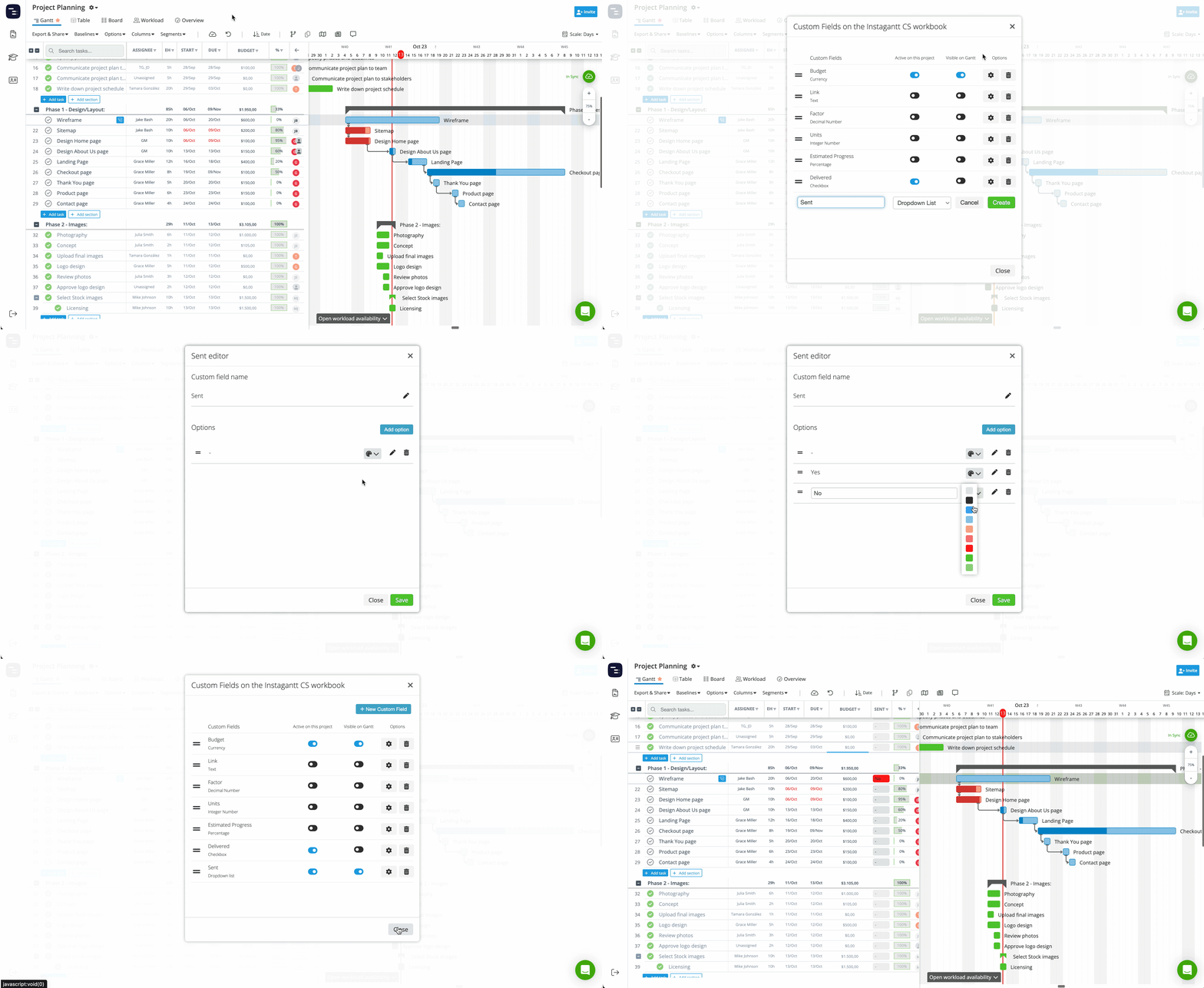
👁️ Activation and Visibility Control of Custom Fields in Instagantt
The Manage Custom Fields window includes two toggles:
- Active on this project → Controls whether the field is enabled for the project.
- Visible on Gantt → Controls whether the field shows as a column in the task list.
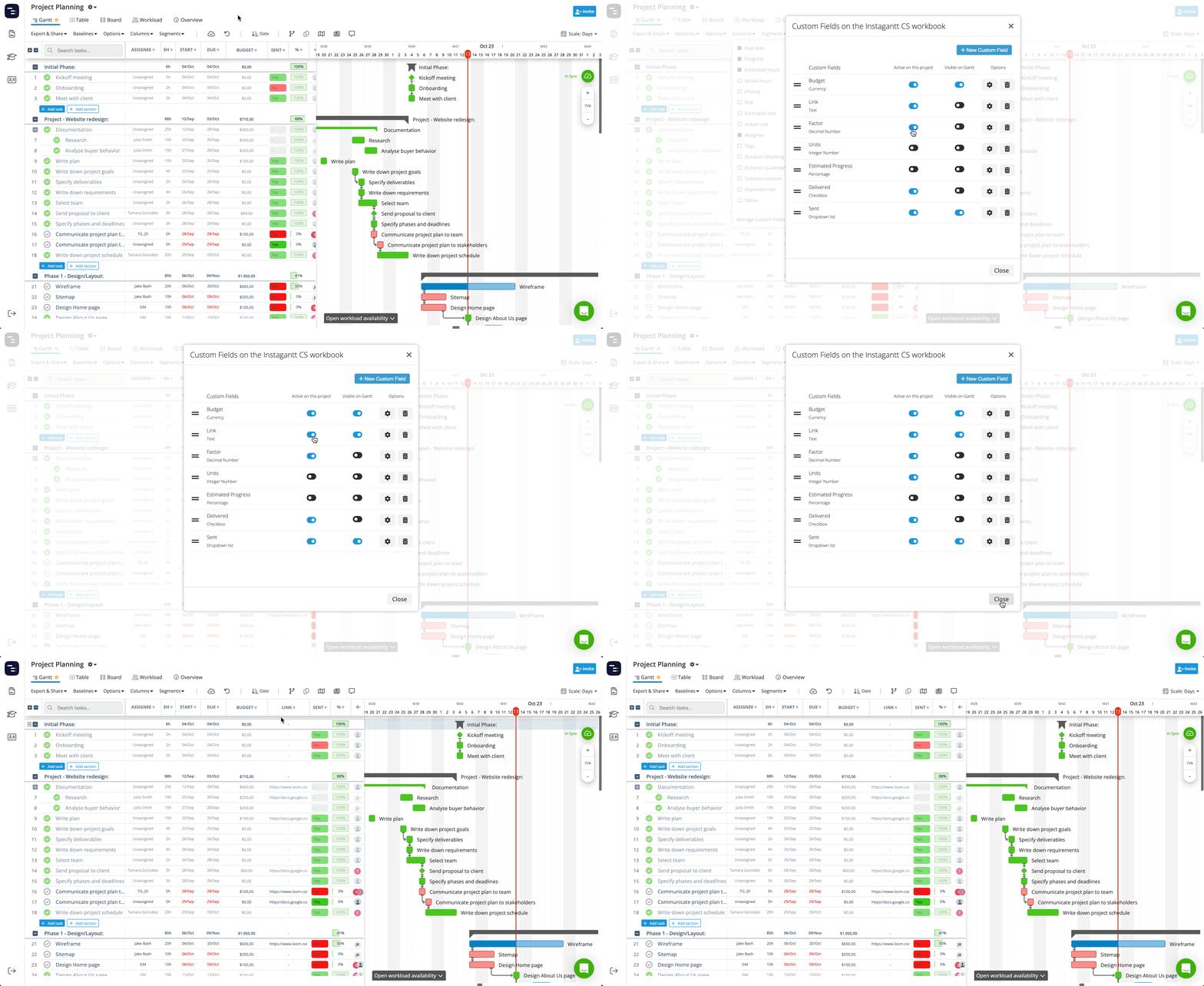
Even if a field is not visible on the task list, it will still appear inside the task details panel, as long as it is active. Even though custom fields are created at the workbook level, each project can choose whether to activate or deactivate them.
- When a field is deactivated, its values are not deleted, only hidden.
- When reactivated, all previously stored values reappear.
This allows different projects within the same workbook to use only the fields that matter to them.
💡 Important notes:
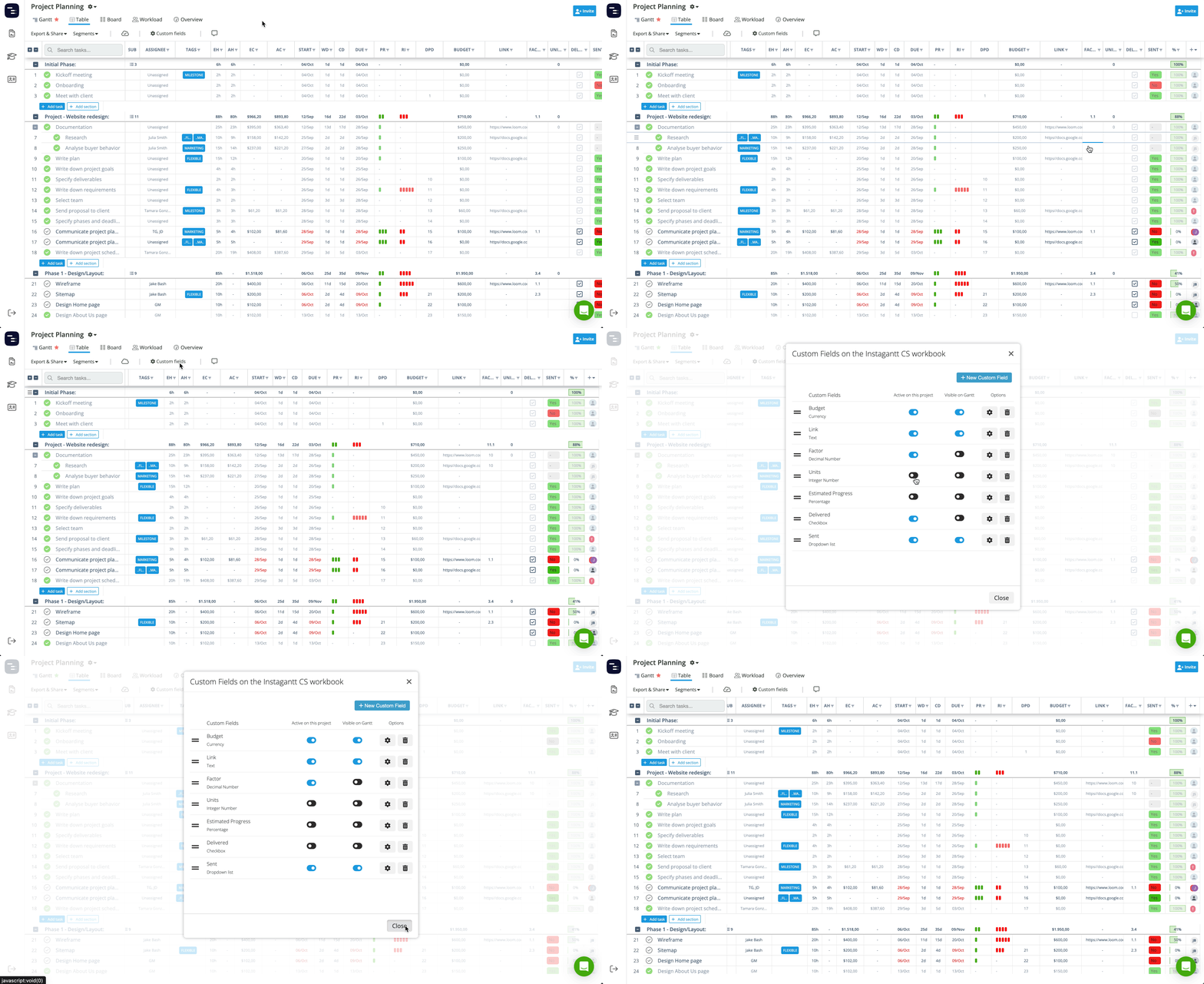
- Custom fields cannot appear as visual elements inside the Gantt chart—only as table columns.
- If a custom field is active on a project, it will always be visible in Table View.
🔎 Using Custom Fields to Filter and Track Work
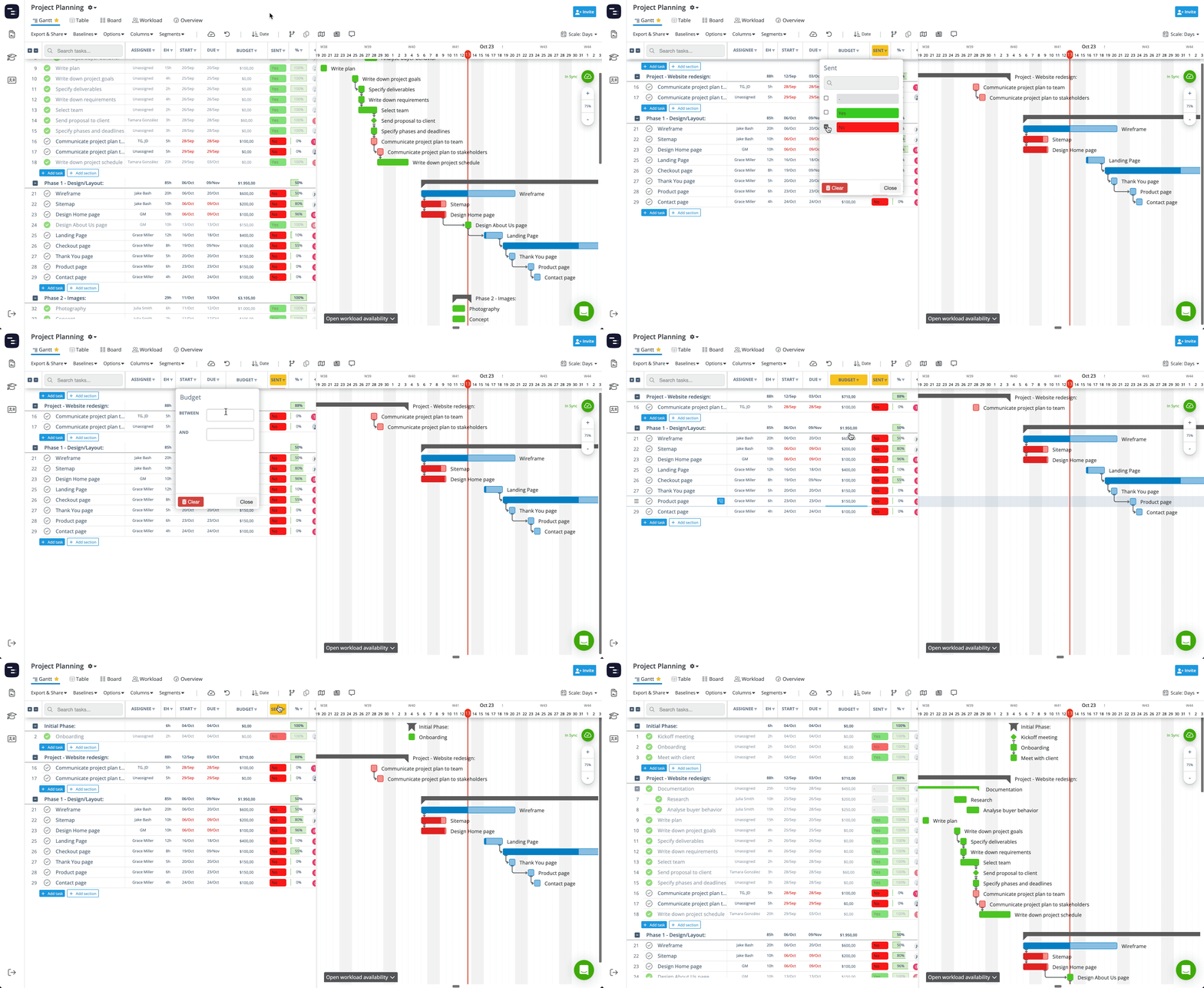
Custom fields can be used as filters, helping you sort, group, and narrow down tasks more effectively:
- When a field is visible as a column, you can filter or sort tasks based on that field’s value.
- Dropdown fields, checkboxes, numbers, or text fields can all be used to surface relevant tasks (e.g., filter by “Client category: VIP”).
- Visible fields are included in spreadsheet, PDF, and image exports for complete reporting.
Using custom fields for filtering transforms your task list into a personal tracking dashboard tailored to your workflow
🗑️ Deleting Custom Fields (⚠️ Irreversible)
Deleting a custom field permanently removes:
- The field itself
- All values stored across every project in the workbook
To delete a custom field, go to Manage Custom Fields and click the trash can button next to the field.
⚠️ Warning: This action cannot be undone. Once deleted, the custom-field data cannot be recovered.
📁 Where Custom Fields Can Be Viewed
Custom fields appear in:
- The task list in Gantt View (when visibility is enabled)
- The task details pane in all views
- The Table View
- Spreadsheet, PDF, and image exports
- Public Snapshots
Custom fields do not appear in:
- Templates
- Duplicated projects
📌 Summary
Custom fields enhance how you organize, categorize, and report on your projects. With flexible controls for field type, activation, visibility, filtering, and deletion, Instagantt lets you build a workflow that fits your exact needs—without sacrificing structure or clarity. Whether you're organizing clients, tracking budgets, or managing workflows, Instagantt's custom fields help you work smarter and stay in control of your data.
🚀 Improve Your Workflow with Custom Fields
Use custom fields to add context, track key information, and build better reports. Start managing your projects today in instagantt.com!
❓ Frequently Asked Questions (FAQ)
What’s the difference between activating a custom field and making it visible?
- Active means the project can store and use values for that field.
- Visible on Gantt means it appears as a column in the task list.A field can be active but hidden and will still appear in the task details panel.
Does deactivating a custom field delete my data?
No. Deactivated fields simply hide from the project, and all values are preserved until the field is reactivated.
Can I recover a deleted custom field?
No. Deleting a custom field is permanent, and all stored values are lost.
Do custom fields appear in exports?
Yes—custom fields included in the Visible on Gantt columns will appear in spreadsheet, PDF, and image exports.
Can team members without admin access create custom fields?
Yes. Anyone with access to the workbook can create, edit, manage and delete custom fields.
Can I create custom fields in Instagantt for Asana?
No, custom fields isa feature only available in Instagantt Standalone.