Bulk Edit Tasks
Bulk editing allows you to modify multiple tasks at once, saving time, reducing manual work, and ensuring consistent updates across your entire project. Whether you’re adjusting dates, changing parents, editing custom fields, or creating a dependency cascade, bulk edit helps you manage large workflows efficiently and with precision.
🧭 Table of Contents
- Why Bulk Editing Matters (and How It Transforms Your Workflow)
- Selecting Multiple Tasks
- Available Bulk Actions
- Best Practices for Efficient Bulk Editing
- Summary
- Frequently Asked Questions (FAQ)
⚡ Why Bulk Editing Matters (and How It Transforms Your Workflow)
When managing large or evolving projects, small task-by-task edits can quickly become time-consuming and mentally draining. This is where Bulk Edit becomes a strategic advantage.
By updating several tasks at once, you can dramatically reduce repetitive work, maintain cleaner data, and keep your project aligned without spending hours on micro-adjustments. Bulk editing helps you:
- Save time on structural updates, like reorganizing parents and subtasks.
- Ensure consistency across dates, tags, and custom fields.
- Restructure timelines in seconds, especially when connecting tasks in a waterfall sequence.
- Maintain focus on high-impact work, instead of getting stuck performing manual edits.
- React faster to changes, keeping your project fluid and adaptive.
In fast-moving teams, bulk editing becomes a silent productivity multiplier — freeing you to spend less time clicking and more time planning, coordinating, and executing real work.
🧩 Selecting Multiple Tasks
Bulk editing begins by selecting multiple tasks in your task list. Instagantt supports intuitive selection actions designed for quick multi-task operations:
Click — Select a single task.Shift + Click — Select a continuous group of tasks.Ctrl/Cmd + Click — Select multiple non-adjacent tasks.
Once your selection is ready, you can apply any bulk action and Instagantt will update all selected tasks in exactly the same way, regardless of whether they are parent tasks or subtasks.The only action not supported is moving the entire selection up or down the task list.
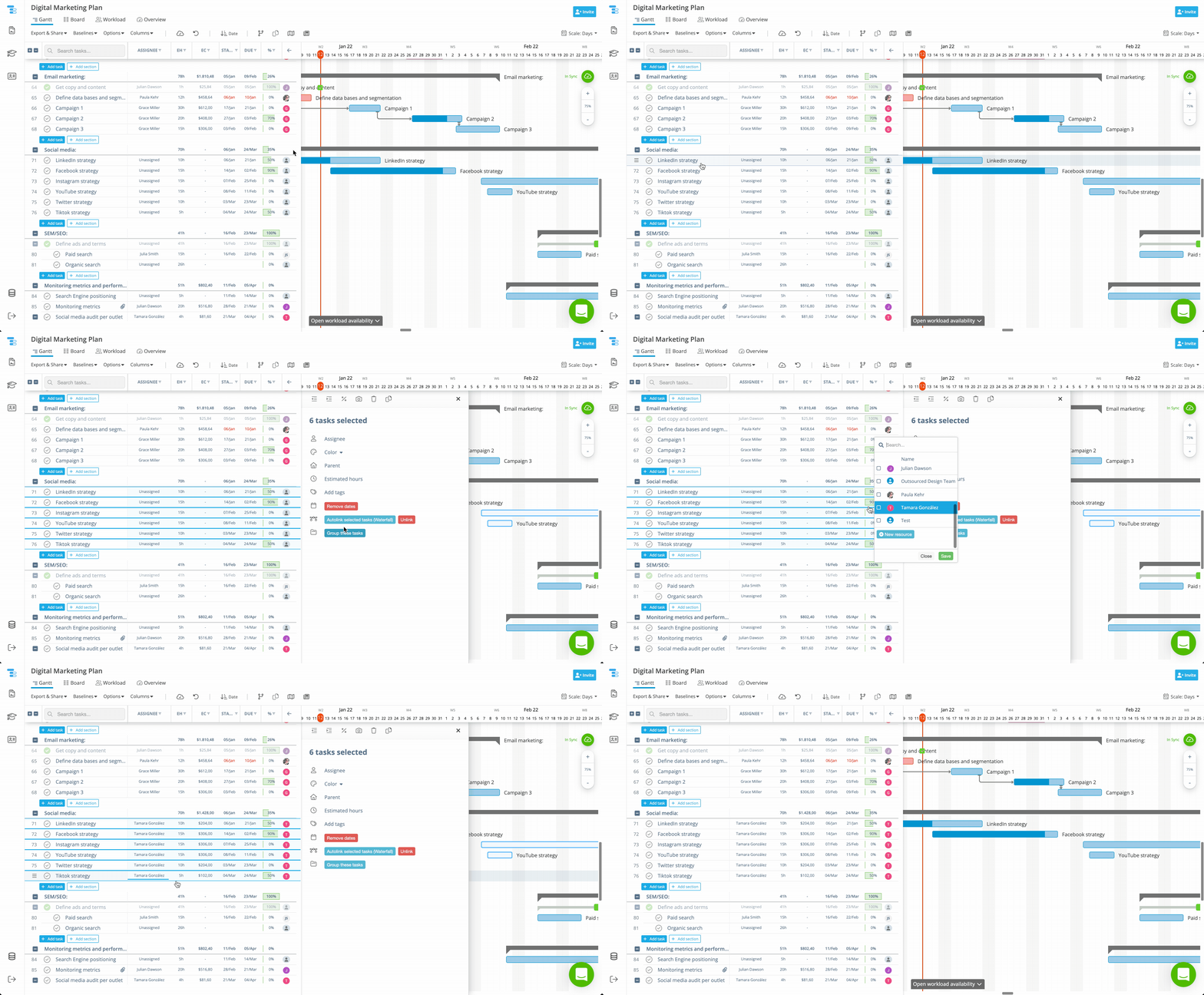
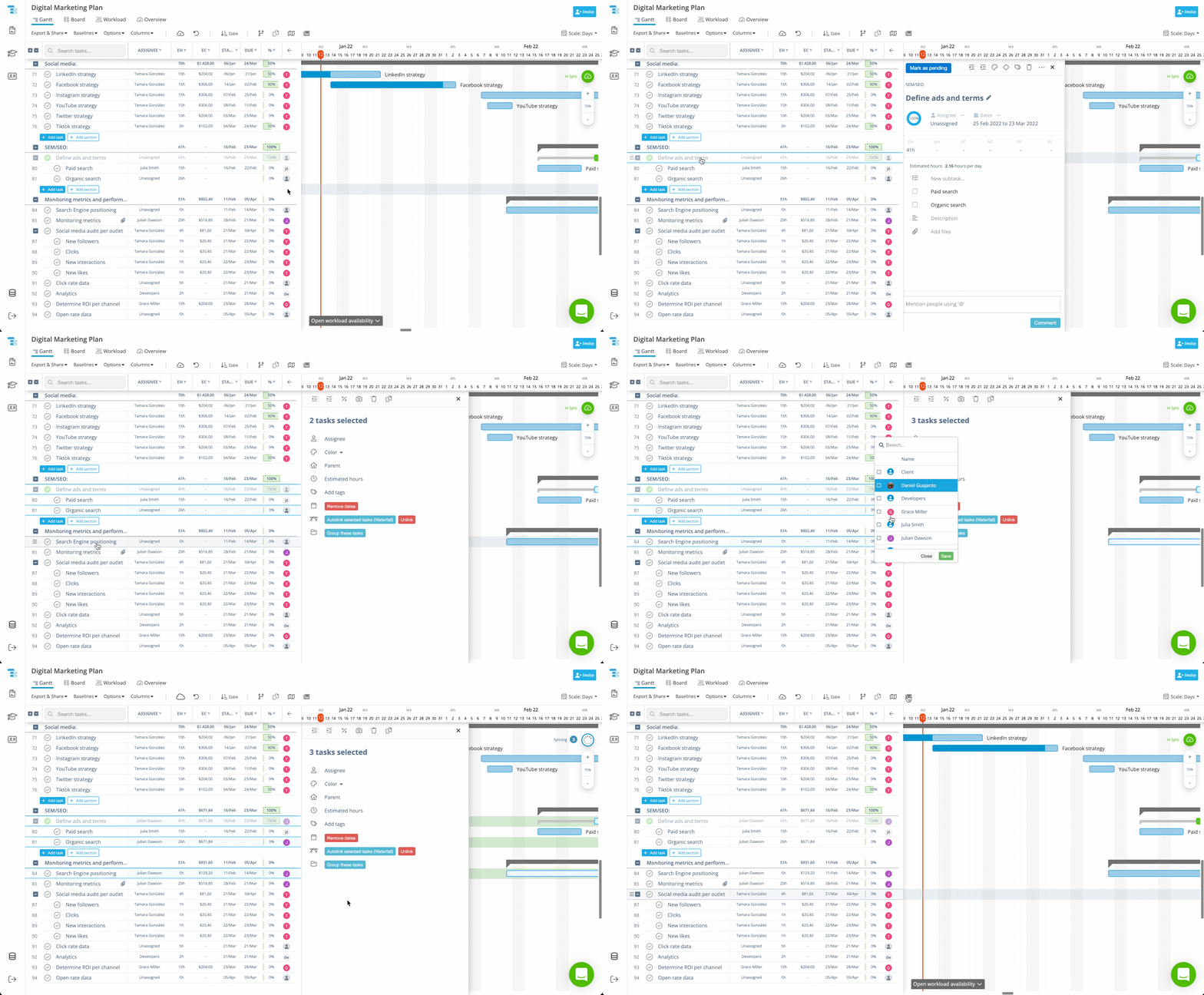
🔧 Available Bulk Actions
Bulk editing opens a wide range of actions that help you restructure and update your project faster.
⏳ Adjust Dates
Change start dates, due dates, or remove dates entirely. All selected tasks will immediately reflect the change.
🗂️ Change Parent Task (Reorganize Structure)
You can reassign multiple tasks to a new parent task at once, reorganizing your hierarchy in seconds.
➡️ Indent / Outdent Tasks
Bulk indent turns selected tasks into subtasks of the task right above the selection. Bulk outdent moves them up one level in the hierarchy. This is ideal for structuring large imported lists.
📎 Edit Tags
Add or remove tags from all selected tasks in one action.
🔢 Bulk Edit Custom Fields
Any active custom field (numbers, text, dropdowns, etc.) can be updated in bulk, helping you align metadata across large sets of tasks.
📝 Duplicate Tasks
Create copies of all selected tasks — including with keyboard shortcuts for faster duplication workflows.
To copy and paste tasks using shortcuts:
- Select the tasks you want to duplicate.
- Press Ctrl/Cmd + C to copy.
- Click the section where you want the tasks to be pasted (same project or another).
- Press Ctrl/Cmd + V to paste.
📌 Important: Tasks will only paste into the section you clicked. If the copied tasks include different hierarchy levels, Instagantt will paste them with the same parent–subtask structure they originally had.
⛓️ Create Dependency Cascades (Waterfall Mode)
You can instantly connect all selected tasks with dependencies in a waterfall sequence:
Task 1 → Task 2 → Task 3 → Task 4 → …
This creates the classic Gantt chart cascade, ideal for sequential workflows.
📌 Tip: Assign durations before creating the dependency chain. If tasks have no duration, Instagantt will default them to 1 day, which may not reflect your real schedule. Setting durations first produces a more realistic and useful timeline.
💡 Best Practices for Efficient Bulk Editing
To make the most of Bulk Edit:
- Define durations before creating dependency cascades for the most accurate timeline.
- Keep your task structure organized to bulk-indent or bulk-reassign parents easily.
- Use custom fields strategically — bulk editing makes it easy to keep them consistent.
- Select tasks carefully with Shift and Ctrl/Cmd to avoid unintended edits.
- Review your changes visually on the Gantt chart after major restructures.
Bulk editing transforms Instagantt into a high-speed project management engine, giving you powerful tools to update, restructure, and optimize your workflows instantly.
📌 Summary
Bulk Edit Tasks allows you to update multiple tasks at once, speeding up your workflow and ensuring consistent, accurate project planning. From adjusting dates and reorganizing parents to editing custom fields and creating dependency waterfalls, bulk editing gives you the flexibility and control needed to manage large, complex projects in seconds.
🚀 Boost Your Project Efficiency with Bulk Edit
Start using Bulk Edit to update multiple tasks at once, restructure hierarchies, and create dependency chains — all in a few clicks.Save time, reduce manual work, and focus on high-impact planning.
❓ Frequently Asked Questions (FAQ)
Can I select non-adjacent tasks?
Yes — use Ctrl/Cmd + Click to pick tasks individually.
Can I reorganize task hierarchy with bulk edit?
Yes — you can indent, outdent, or assign a new parent to all selected tasks at once.
Can I bulk edit custom fields?
Yes — any active custom field can be updated for all selected tasks in one action.
Can I remove dates from multiple tasks at once?
Absolutely — bulk removing dates works the same as bulk applying them.
Can I build a dependency cascade using bulk edit?
Yes — Instagantt can automatically connect selected tasks with waterfall-style dependencies.