Delete, Filter & Sort Tasks
Managing tasks efficiently is essential for keeping complex projects clear, structured, and under control. In Instagantt, the ability to delete tasks, filter tasks, and sort tasks gives you powerful tools to clean up your plan, focus on what matters, and adapt your Gantt chart to different project management needs as your work evolves.
These actions play a key role in online Gantt planning, allowing teams to maintain accurate timelines, reduce noise, and make better scheduling decisions without rebuilding their project from scratch.
🧭 Table of Contents
- Deleting Tasks, Subtasks, and Sections
- Filtering Tasks Across Views
- Sorting Tasks in Instagantt
- Saving Filters with Segments
- Practical Examples and Use Cases
- Summary
- Frequently Asked Questions (FAQ)
🗑️ Deleting Tasks, Subtasks, and Sections
Instagantt allows you to delete tasks, subtasks, and sections using the same actions, making cleanup fast and consistent across your project.
Deleting elements is especially useful during project replanning, scope changes, or when outdated work no longer reflects reality. Keeping your Gantt View (Task list) clean improves readability and ensures your timeline represents only actionable work.
You can delete tasks from:
- Gantt View (Task list)
- Table View
- Board View
- Workload View
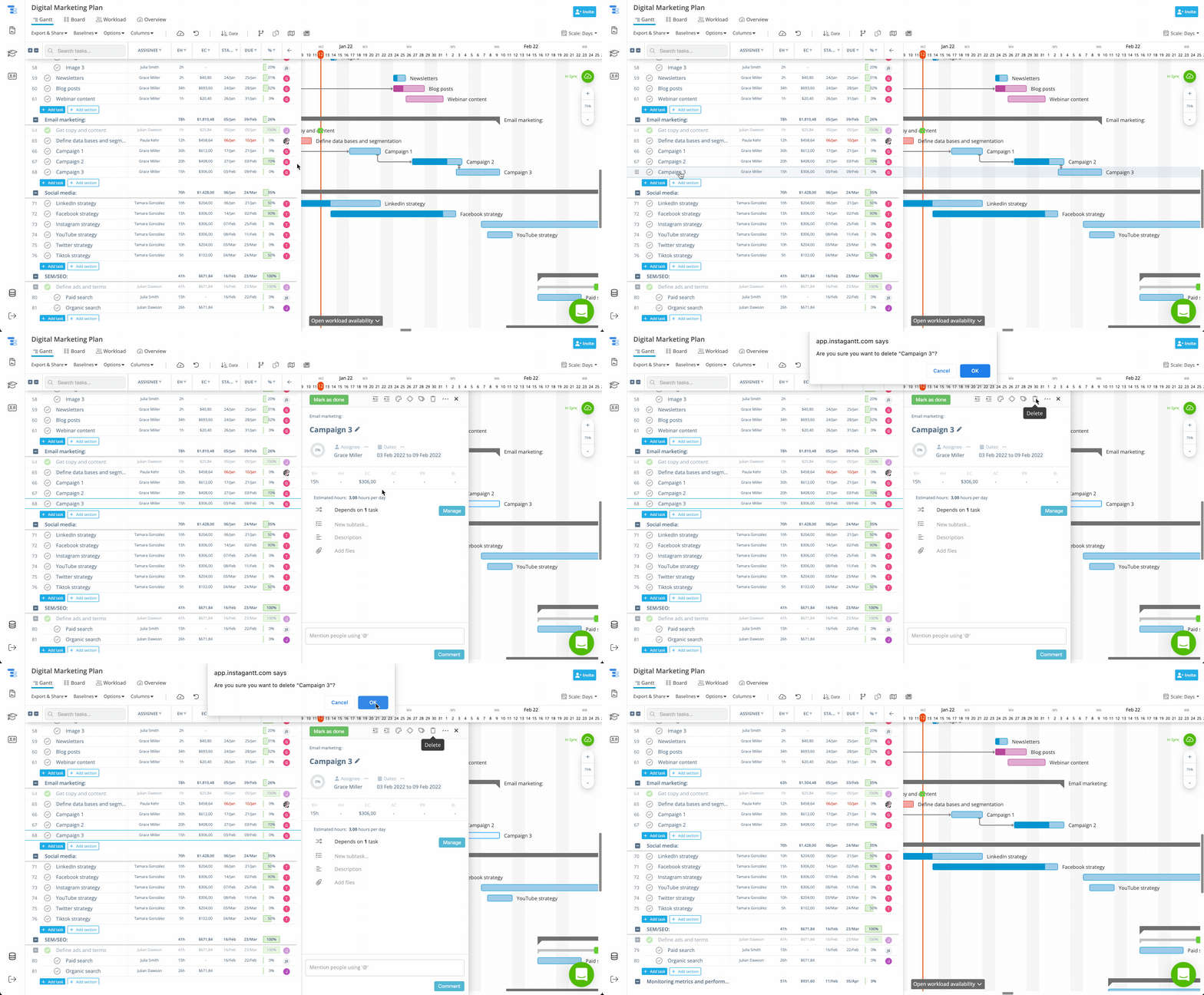
ask, simply click on the name of the task and, on the details pane, head over to the trash bin icon at the top and click on it to delete the task. Then, confirm you want to delete the task by clicking the “OK” button on the confirmation dialogue. Removing unnecessary tasks helps prevent scheduling confusion, reduces visual clutter, and makes dependencies and durations easier to manage in large or long-running projects.
⚠️ Warning: Deleted items cannot be recovered, so it’s recommended to double-check before removing tasks that may still contain valuable information.
🔍 Filtering Tasks Across Views
Filtering tasks allows you to temporarily narrow down what you see without changing the underlying project structure. This is one of the most effective ways to focus your Gantt chart on specific priorities, people, or timeframes.
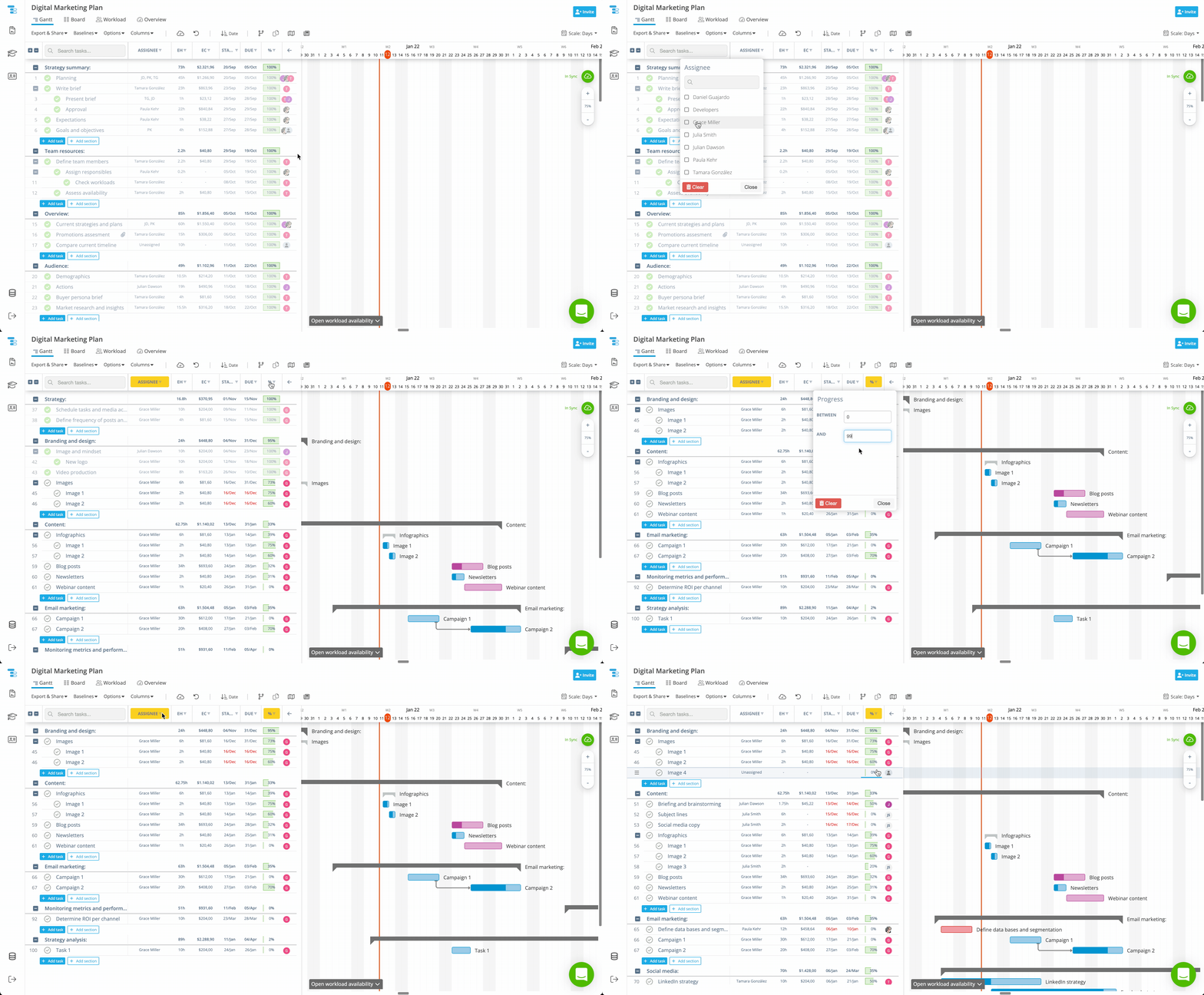
In Gantt View, filtering is done by clicking directly on column headers and applying filters based on the column type:
- Text-based columns allow value selection
- Assignee columns use checkboxes
- Date columns allow date ranges such as “Between” and “And”
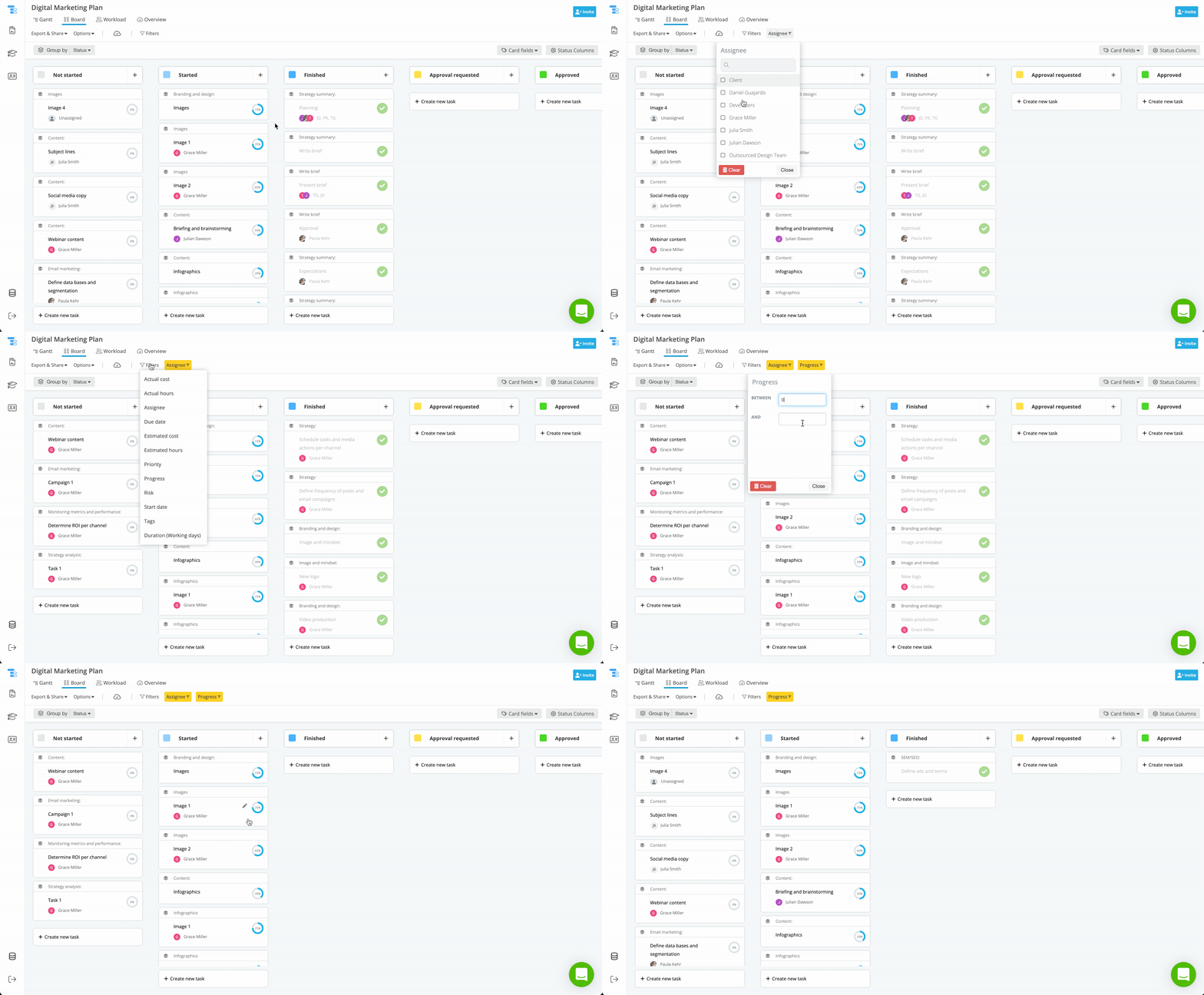
In other views, such as Table, Board and Workload, filters are accessed through the Filter button in the top toolbar, where you can apply the same filtering logic across available fields.
Filters persist when switching views, making it easy to analyze the same slice of data from different perspectives. This persistence is especially valuable in project management reviews, where consistency across views improves decision-making.
You can filter by virtually any column, including custom fields, enabling highly tailored views for reporting, tracking, and day-to-day execution.
💾 Saving Filters with Segments
Filters can be saved using Segments, allowing you to reuse specific filtered views without reapplying criteria each time.
Segments are particularly useful for:
- Weekly status reviews
- Team-specific workload checks
- Client-facing snapshots
- Phase-based planning sessions
By saving filters, you turn Instagantt into a more powerful project management workspace, where recurring views support faster analysis and more consistent communication.
🔃 Sorting Tasks in Instagantt
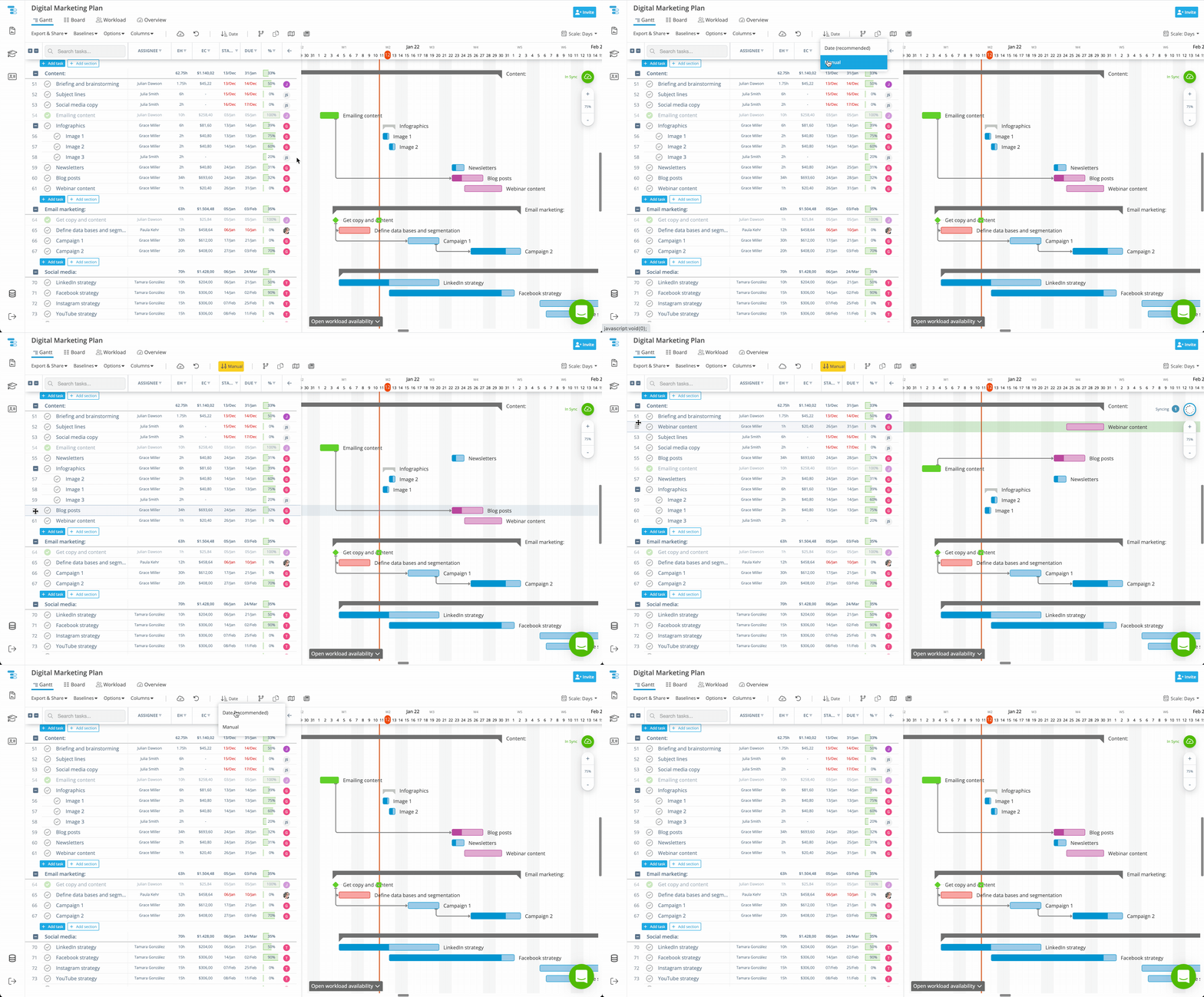
Instagantt supports two sorting methods, each designed for a different planning approach:
- Sort by date — Automatically sorts tasks by start date
- Manual sort — Allows users to rearrange tasks manually
Sorting by date is ideal when validating schedules or reviewing execution order, while manual sorting gives project managers full control over task hierarchy and presentation.
These sorting options support flexible Gantt chart planning, allowing teams to shift between automated structure and hands-on organization depending on the phase of the project.
No other sorting types are supported, ensuring the task list remains predictable and aligned with timeline logic.
💡 Practical Examples and Use Cases
These features become especially powerful when combined in real-world scenarios:
- Deleting obsolete or out-of-scope tasks
- Deleting tasks created by mistake or duplicated during planning
- Filtering by assignee to review individual or team workload
- Filtering by dates to focus on short-term deliverables
- Sorting manually to reflect execution order during planning sessions
Together, delete, filter, and sort actions help transform a static plan into a dynamic online Gantt chart that evolves with your project instead of fighting against it.
📌 Summary
Deleting, filtering, and sorting tasks in Instagantt gives you full control over how your project is structured and displayed. These tools help reduce noise, improve focus, and support smarter project management decisions without altering the integrity of your timeline.
By using them intentionally, you can keep your Gantt chart clean, relevant, and aligned with how your project actually works.
🚀 Take Control of Your Gantt Chart with Smarter Task Management
Use Instagantt’s delete, filter, and sort tools to keep your Gantt charts clean, focused, and easy to manage.
Not a user yet? Sign Up today in instagantt.com
❓ Frequently Asked Questions (FAQ)
Do filters affect the actual project data?
No. Filters only change what you see, not the underlying project structure.
Do filters persist when switching views?
Yes. Filters remain active when moving between views.
What sorting options are available in Instagantt?
You can sort by start date or manually rearrange tasks.
Can I delete subtasks and sections the same way as tasks?
Yes. The same delete actions apply to tasks, subtasks, and sections.