Color Coding Tasks
Color coding in Instagantt is a simple way to visually organize tasks inside your gantt chart, helping teams quickly identify important work, group related activities, and improve overall project readability when using gantt chart software. Colors can be applied manually to tasks and are especially useful in complex timelines where visual cues make planning and tracking easier.
🧭 Table of Contents
- What Is Color Coding in Instagantt?
- How to Apply Colors to Tasks
- Default Color Coding and Task Status
- Manual Color Coding Rules and Limitations
- Summary
- Frequently Asked Questions (FAQ)
🧠 What Is Color Coding in Instagantt?
Color coding allows you to assign a visual color to individual tasks in your gantt chart software. These colors appear directly on the task bars, making it easier to scan timelines, distinguish tasks, and apply visual organization to your gantt chart planning process.
Instagantt supports:
- One default color coding system (status‑based)
- 18 additional manual colors that can be assigned to tasks
Color coding is intentionally simple and manual, giving teams full control over how colors are interpreted within their project management workflow.
🎯 How to Apply Colors to Tasks
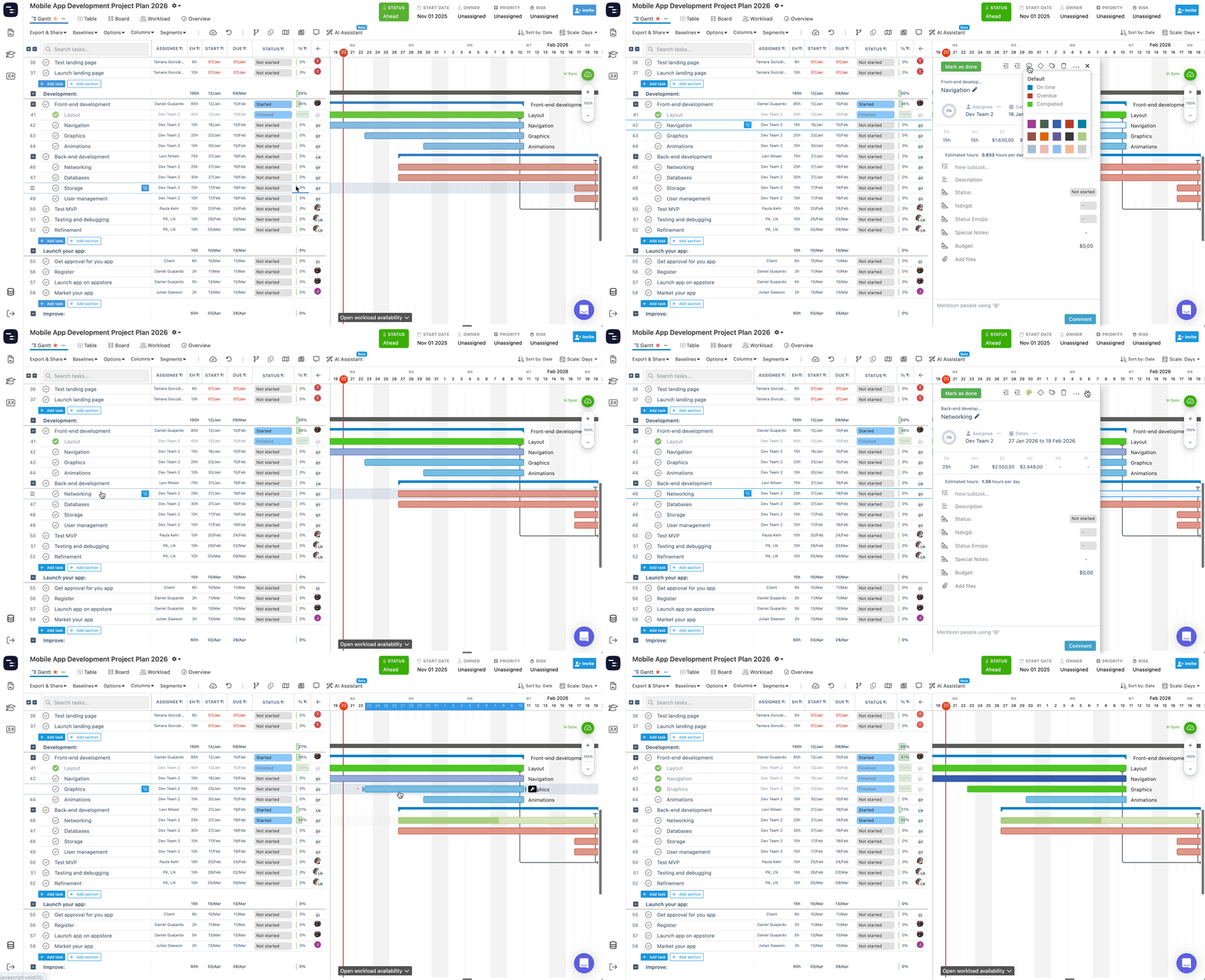
You can apply a color to a task directly from the task details pane:
- Click on a task in the Gantt chart to open the task details pane
- At the top of the pane, click the palette icon 🎨
- Select one of the available colors
Once selected, the color is immediately applied to the task bar in the chart.
Instagantt offers 18 available colors in addition to the default task color, allowing teams to create their own visual conventions without enforcing a specific methodology.
🔵 Default Color Coding and Task Status
The default color coding is the only color option that automatically reacts to the task’s status. When using the default color:
- Blue → Task is scheduled and not overdue
- Red → Task is overdue
- Green → Task is completed (regardless of whether it was completed on time)
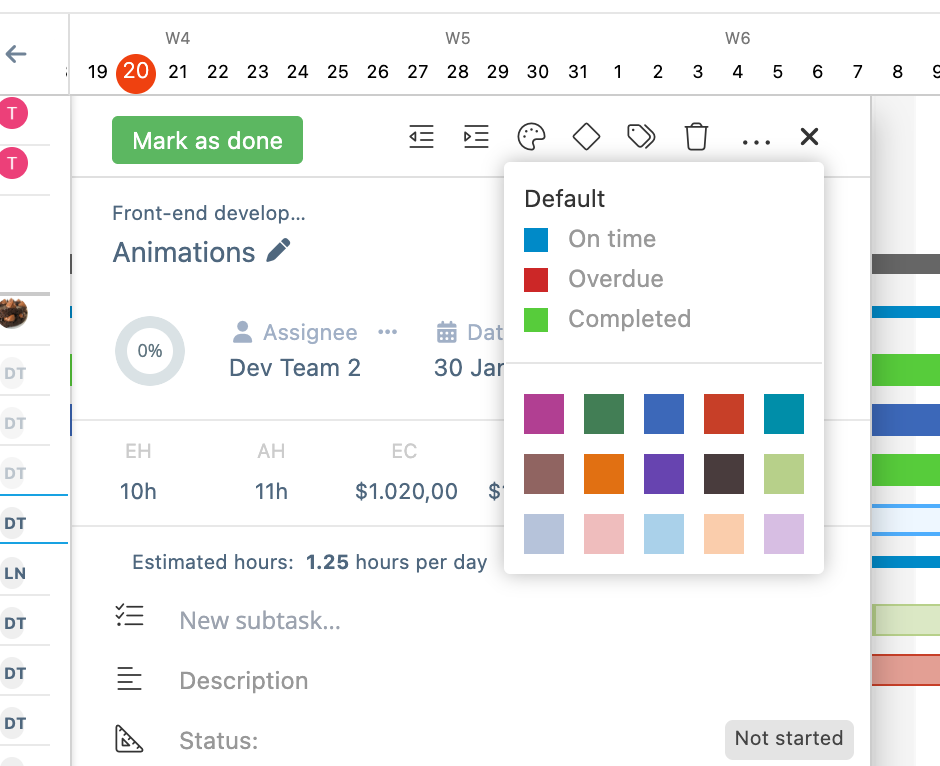
This dynamic behavior helps teams quickly understand task health without opening task details, making it especially useful in day‑to‑day project tracking.
⚠️ Once a task is manually color coded using one of the 18 available colors, it will no longer react to task status color changes.
🚦 Manual Color Coding Rules and Limitations
To keep color usage clear and predictable, Instagantt follows a few important rules:
- Only tasks can be color coded
- Sections and projects cannot be color coded
- Manual colors do not change based on task status
- Tasks cannot be color coded automatically based on other fields or columns
Color coding in Instagantt is designed to be a visual aid, not an automation system. Teams are free to define what each color means, as long as everyone shares the same understanding.
📌 Summary
Color coding in Instagantt helps teams visually organize tasks inside their gantt chart using a simple, manual approach. While the default color reacts automatically to task status, the additional 18 colors allow for flexible visual grouping without enforcing rules or priorities.
By keeping color coding straightforward and intentional, Instagantt ensures clarity, consistency, and better readability across projects built with modern gantt chart software.
🚀 Visually Organize Your Gantt Charts Faster
Apply colors to tasks and make your project timelines easier to read at a glance. Try color coding in Instagantt and bring instant visual clarity to your gantt chart planning.
❓ Frequently Asked Questions (FAQ)
Can colors be applied automatically based on priority, risk, or other fields?
No. Tasks cannot be color coded automatically based on any column or parameter.
Can sections or projects be color coded?
No. Only individual tasks support color coding.
Do manual colors change when a task becomes overdue or completed?
No. Only the default color coding reacts to task status changes.
How many colors are available for manual use?
Instagantt provides 18 manual colors in addition to the default task color.