Critical Path
The critical path is one of the most important concepts in project management and Gantt chart planning. It represents the sequence of tasks that directly determines your project’s finish date. In Instagantt, the Critical Path feature helps you instantly identify which tasks truly matter — so you can focus your attention where delays would have the biggest impact.
This guide explains what the critical path is, why it matters, and how to use Instagantt’s Critical Path toggle to gain better control over your project schedule.
🧭 Table of Contents
- What Is the Critical Path?
- Why and When the Critical Path Matters
- How the Critical Path Works in Instagantt
- Best Practices and Limitations
🧠 What Is the Critical Path?
In project management, the critical path is the longest sequence of dependent tasks that must be completed on time for the project to finish as scheduled. Any delay in a critical task will directly delay the entire project.
Tasks on the critical path have zero slack (or float), meaning there is no extra time available without affecting the final delivery date. Tasks outside the critical path may shift without impacting the overall schedule — as long as their slack is not exceeded.
Understanding the critical path allows project managers to identify:
- Tasks that directly control the project end date
- Scheduling risks and bottlenecks
- Where effort, resources, and attention should be prioritized
🎯 Why and When the Critical Path Matters
The critical path is essential for effective project scheduling, risk management, and resource planning. By knowing which tasks are critical, teams can:
- Prevent schedule overruns by monitoring high‑impact tasks
- Make informed decisions when adjusting dates or dependencies
- Focus execution on tasks that directly affect delivery
- Evaluate the impact of scope or schedule changes before they cause delays
- Support stakeholder reviews with a clear view of delivery‑driven work
In complex Gantt charts, the critical path acts as a visual guide that cuts through noise and highlights what truly drives project completion. By toggling the critical path on and off, you can instantly understand how changes affect your project’s completion date.
⚙️ How the Critical Path Works in Instagantt
Instagantt makes the critical path easy to understand and use through a simple toggle button located on the top toolbar.
To activate the Critical Path:
- Click the Critical Path button on the top toolbar
- All critical tasks will be highlighted directly on the Gantt chart
- Critical tasks are visually identified by a red outline around their task bars, making them stand out instantly
When the toggle is active:
- The highlight updates automatically based on task durations, dependencies, and dates
- No configuration or setup is required
Clicking the button again deactivates the highlight and returns the Gantt chart to its normal view.
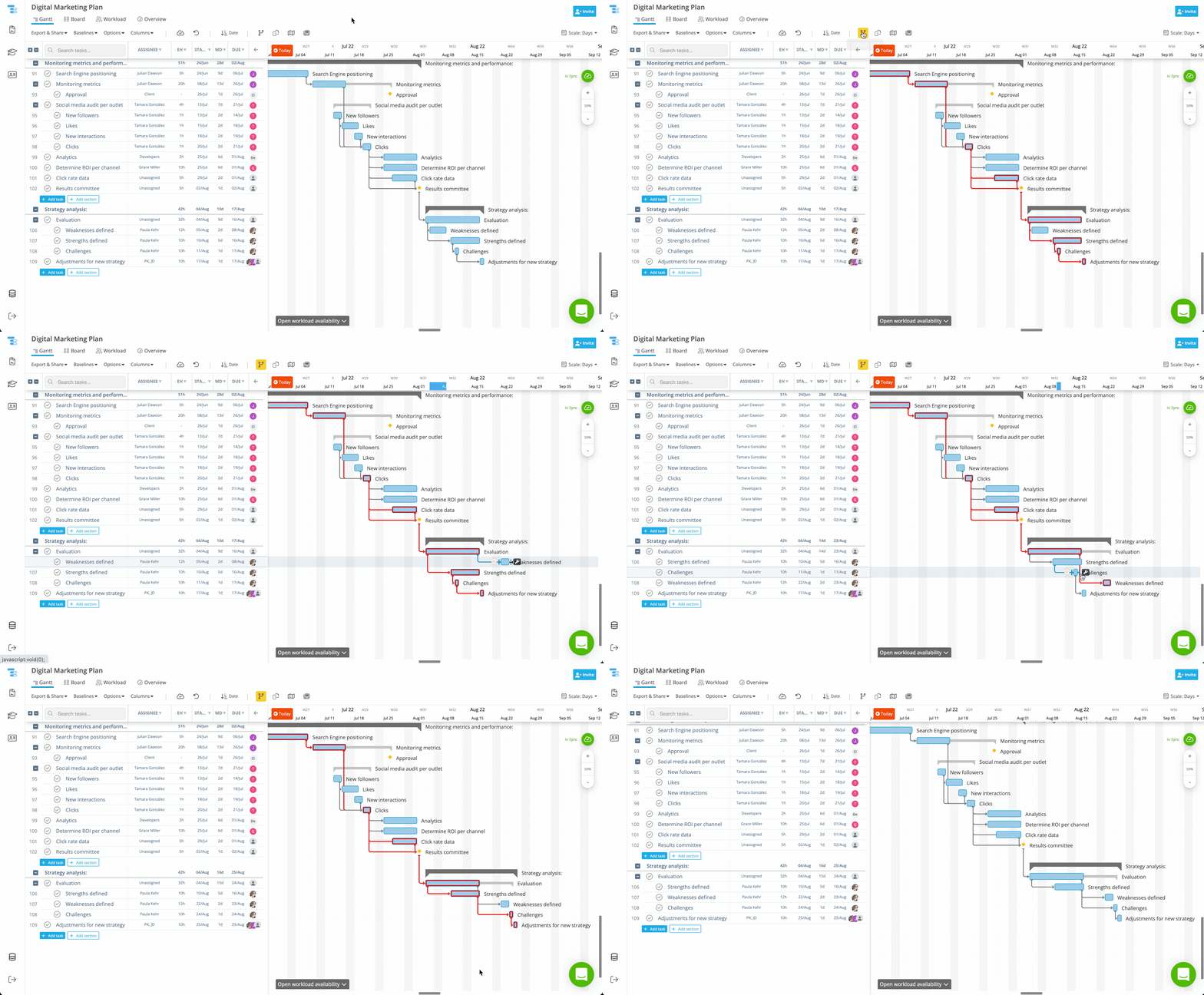
The feature works identically in Instagantt Standalone and Instagantt for Asana, ensuring consistent behavior regardless of the platform you use.
💡 Best Practices and Limitations
While the Critical Path feature is powerful, it’s important to understand its scope. It is a visual highlight, not a scheduling rule, and it does not prevent you from editing tasks. The accuracy of the critical path depends entirely on well‑defined dependencies, realistic durations, and correct dates.
For best results, ensure your Gantt chart is well structured before relying on the critical path for decision‑making.
To get the most value from the Critical Path feature:
- Define task dependencies clearly
- Set realistic task durations
- Recheck the critical path after schedule changes
- Use it as a decision‑support tool for Gantt chart planning and project management
📌 Summary
The Critical Path feature in Instagantt helps you quickly identify the tasks that directly control your project’s finish date. With a simple toggle, you can highlight scheduling risks, focus on what truly matters, and make smarter decisions when managing complex projects.
By understanding and using the critical path, you gain stronger control over timelines, dependencies, and delivery outcomes.
🚀 Plan Smarter with Critical Path
Use Instagantt’s Critical Path feature to focus on high‑impact tasks, reduce scheduling risks, and keep your projects on track — even when plans change.
Visit instagantt.com today and start planning!
❓ Frequently Asked Questions (FAQ)
What does the Critical Path show in Instagantt?
It highlights the sequence of tasks that directly determines the project’s finish date.
Does the Critical Path update automatically?
Yes. It recalculates automatically based on task dates, durations, and dependencies.
Is the Critical Path available in Instagantt for Asana?
Yes. The feature works the same way in both Instagantt Standalone and Instagantt for Asana.
Can I edit tasks while the Critical Path is active?
Yes. The toggle only affects visualization and does not restrict editing.
Why is my critical path not what I expect?
This usually happens when dependencies or durations are missing or inaccurate.
Why does the critical path seem very short or only highlight the last task?
This typically means the final task has few or no dependencies leading up to it. In that case, the critical path may consist of only the last task or a very short chain.
To see a richer and more meaningful critical path, create a longer chain of task dependencies leading to the final deliverable. This allows Instagantt to calculate and highlight a more complete sequence of critical tasks.
Can activate the Critical Path for a folder or project group?
No, this is a feature meant for single projects because they have one critical path. Folders or groups have one critical path per project, which would look incredibly confusing on screen.
What happens with the Critical Path if there are two identical paths leading to the final task?
The system will always highlight the most critical path, however, if there are two equal paths, Instagantt will choose one of them and display it as the critical path. If anything changes, it will recalculate the path accordingly.