Conversations View
Conversations View brings every comment thread in a project together in one place. Instead of opening tasks one by one to find out what your team is discussing, you can scan all active conversations, read the full thread and reply — without leaving the view.
🧭 Table of Contents
- What Is Conversations View in Instagantt?
- How to Open Conversations View
- How to Read and Reply to a Conversation
- Mentions, Shortcuts and Search
- Conversations View vs. Task Comments
- Summary
- Frequently Asked Questions (FAQ)
🧠 What Is Conversations View in Instagantt?
Conversations View is a project view dedicated to communication. Every task or subtask that has at least one comment appears as a conversation, ordered from newest to oldest activity.
The view has three areas:
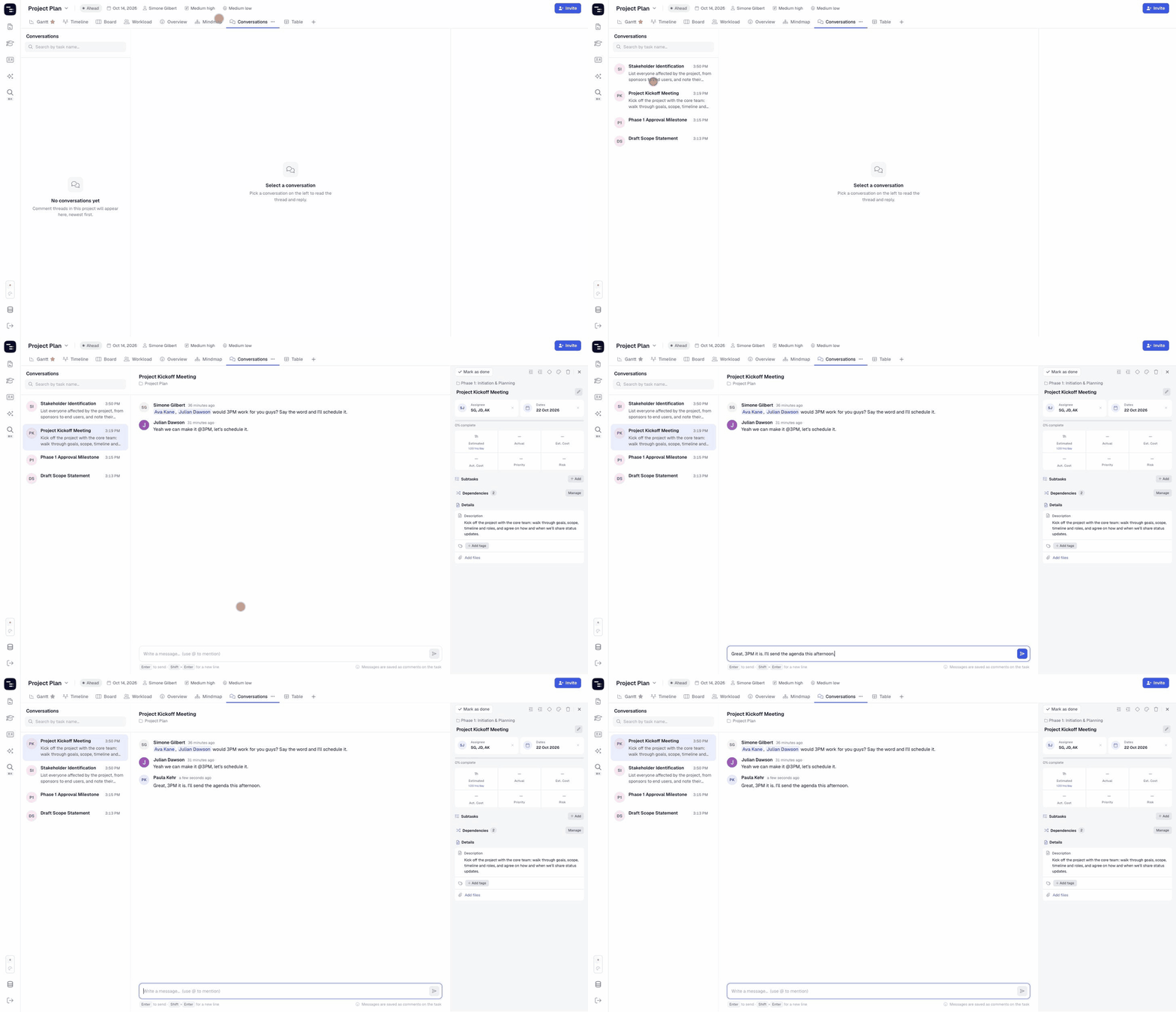
- Conversation list (left) — every task with comments, its initials avatar and the time of the latest message. Use the search box at the top to filter it.
- Thread (center) — the full comment history of the selected task, with the message box at the bottom.
- Task details pane (right) — the selected task’s details, so you can update dates, assignees, status or subtasks while you talk about them.
Messages sent from Conversations View are saved as regular task comments, so they also appear at the bottom of the task details pane in every other view.
🎯 How to Open Conversations View
- Open your project in Instagantt.
- In the row of view tabs at the top of the project, click Conversations.
- If you don’t see the Conversations tab, click the + button at the end of the view tabs and tick Conversations to add it to the project.
If no one has commented on a task in the project yet, you’ll see the message “No conversations yet”. As soon as someone comments on a task, its thread appears in the list.
💬 How to Read and Reply to a Conversation
- Click a conversation in the list on the left.
- Read the full thread in the center — each message shows its author and when it was posted.
- Type your reply in the Write a message… box at the bottom.
- Press Enter (or click the send button) to post it.
The conversation you replied to moves to the top of the list, so the most recent discussions are always first.
🔎 Mentions, Shortcuts and Search
@Mentions
Type @ in the message box to open the list of project members, then pick a name. The mention is added as a highlighted name in your message so the teammate is notified and can find the conversation in their Inbox.
Keyboard shortcuts
- Enter — send the message
- Shift + Enter — add a new line without sending
Search conversations
Use the Search by task name… box at the top of the list to find a conversation quickly. Clear the search with the × button to see every conversation again.
🔄 Conversations View vs. Task Comments
Conversations View doesn’t replace task comments — it gives you a better way to work with them:
- Every message is a task comment, and every task comment is part of a conversation.
- Comments posted from the task details pane in Gantt, Table or Board appear in Conversations View instantly, and vice versa.
- Mentions, the Inbox and the Unread comments indicator work the same way no matter where the comment was posted.
To learn more about comments, mentions and the Inbox, check our Comments guide.
📌 Summary
Conversations View gives every project a single place for team communication. It helps you:
- See all active discussions in a project at once
- Reply quickly with mentions and keyboard shortcuts
- Find a thread by task name in seconds
- Update the task you’re discussing without switching views
🚀 Keep Every Project Conversation in One Place
Turn on Conversations View in your projects and stop hunting for comments task by task — read, reply and act from one screen.
❓ Frequently Asked Questions (FAQ)
Are messages in Conversations View different from task comments?
No. Messages are saved as comments on the task, so you’ll see them in the task details pane in every view.
Can I start a new conversation from this view?
Conversations are created from tasks. Post the first comment on a task (from its task details pane) and it will appear in Conversations View.
How are conversations ordered?
Newest activity first. When a new message is posted, its conversation moves to the top of the list.
Can I mention people in Conversations View?
Yes. Type @ and choose a project member from the list.
Why can’t I see the Conversations tab in my project?
Views can be turned on and off per project. Click the + button at the end of the view tabs and tick Conversations.