Timeline View
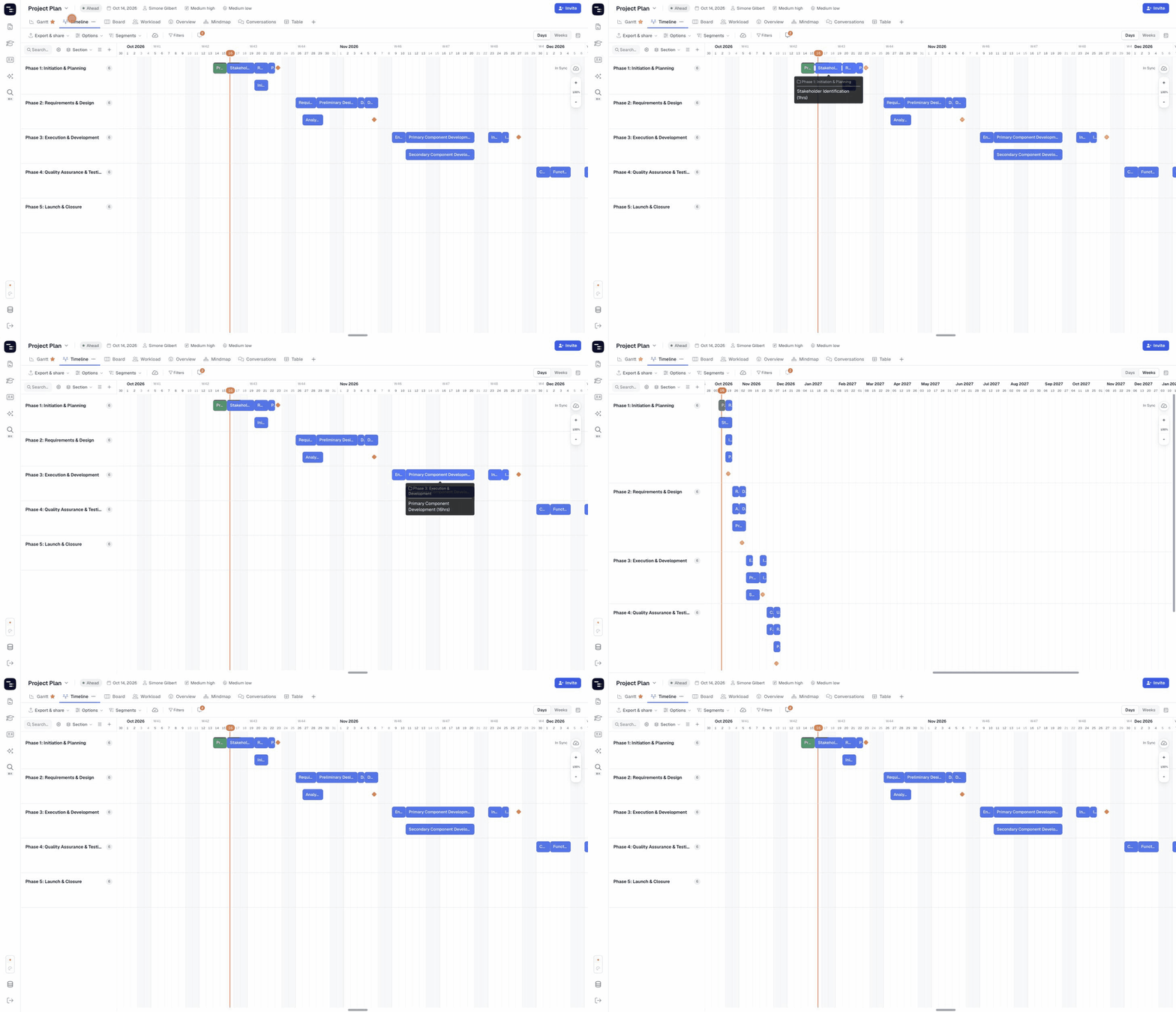
Timeline View shows your project as horizontal swimlanes over a calendar. Tasks are packed into each lane as bars, so you can see at a glance how work is distributed across sections, people or any dropdown custom field — without the long task list of the Gantt chart.
🧭 Table of Contents
- What Is Timeline View in Instagantt?
- How to Open Timeline View
- How to Group Your Timeline
- Working with Tasks in Timeline View
- Timeline Settings and Sections
- Timeline View vs. Workload View
- Summary
- Frequently Asked Questions (FAQ)
🧠 What Is Timeline View in Instagantt?
Timeline View is a lane-based schedule. Each lane represents a group — a section, an assignee or a value of a dropdown custom field — and every task in that group is drawn as a bar between its start and due dates. Tasks that overlap are stacked on separate rows inside the same lane, and each lane shows how many tasks it contains.
It’s ideal for roadmaps, resource planning and status meetings, where the question is “what is happening when, and for whom?” rather than “how are tasks linked?”.
🎯 How to Open Timeline View
- Open your project in Instagantt.
- In the row of view tabs at the top of the project, click Timeline.
- If you don’t see the Timeline tab, click the + button at the end of the view tabs and tick Timeline to add it to the project.
🗂 How to Group Your Timeline
Use the grouping button in the header of the lane list (it shows the current grouping, e.g. Section) to choose how lanes are built:
- Section — one lane per project section (default).
- Assignee — one lane per person or resource. Tasks with several assignees appear in each of their lanes.
- Dropdown custom fields — one lane per option of the selected field.
At the bottom of the same menu, choose Set “[grouping]” as project default to make that grouping the starting point for everyone who opens Timeline View in this project.
🖱 Working with Tasks in Timeline View
- Hover a bar to see the task’s full name, section and estimated hours.
- Click a bar to open the task details pane and edit any field.
- Drag a bar left or right to reschedule the task. Dependent tasks are moved automatically, just like in Gantt View.
- Hover an empty slot in a lane and click + to create a new task on that date.
- Use the search box at the top of the lane list to find tasks by name.
The Days / Weeks toggle, the calendar display options, the zoom controls and the Today marker work the same way as in Gantt View.
⚠️ Tip: Moving a task in Timeline View changes its real dates. If you move something by mistake, use Undo (or the version history under the cloud icon) to go back.
⚙️ Timeline Settings and Sections
- Timeline settings (gear icon) — tick Include subtasks to show subtasks as their own bars.
- Reorder sections (list icon) — drag sections into a new order when the timeline is grouped by Section.
- Add section (+ icon) — type a name to create a new section without leaving the view.
⚖️ Timeline View vs. Workload View
Both views draw tasks in lanes over a calendar, and grouping Timeline View by Assignee gives you one lane per person, just like Workload View. The difference is what each lane tells you:
- Workload View is about capacity. Each person’s lane shows their daily workload in hours (Estimated Hours divided by Duration, summed per day), and days where someone is over capacity are shown in red. Use it to balance assignments and avoid overloads.
- Timeline View is about the schedule. Each lane shows the task bars themselves, packed into rows, and can be grouped by section, assignee or a dropdown custom field. Use it to review what is happening when, by phase, person or category, and to reschedule by dragging bars.
Both views share the same data as Gantt View, so you can check capacity in Workload and present the plan in Timeline.
📌 Summary
Timeline View gives you a compact, lane-based picture of your schedule. With it you can:
- Group work by section, assignee or custom field
- Spot busy periods and gaps at a glance
- Reschedule tasks by dragging bars
- Create tasks and sections directly on the timeline
🚀 Present Your Plan in Swimlanes
Turn on Timeline View in your next project to share a clear, lane-based roadmap with your team and stakeholders.
❓ Frequently Asked Questions (FAQ)
Is Timeline View the same as the Days/Weeks timeline scale?
No. Timeline View is a separate project view with swimlanes. The Days/Weeks toggle only changes the scale of the calendar in Gantt, Timeline and Workload. See our Day & Week Scale guide for details.
Can I see dependencies in Timeline View?
Dependencies aren’t drawn in Timeline View, but they are still respected: when you move a task, its dependent tasks move with it. Use Gantt View to create and edit dependencies.
Can I show subtasks?
Yes. Open Timeline settings (gear icon) and tick Include subtasks.
Does each person see a different grouping?
You can switch grouping at any time. To set the grouping that everyone starts with, choose Set “[grouping]” as project default in the grouping menu.
Why can’t I see the Timeline tab in my project?
Views can be turned on and off per project. Click the + button at the end of the view tabs and tick Timeline.