Mindmap View
Mindmap View shows your project as a tree: the project at the top, its sections below it, and every task and subtask branching out from there. It’s a fast way to understand the structure of a plan at a glance, explain it to stakeholders, or reorganize work without looking at dates first.
🧭 Table of Contents
- What Is Mindmap View in Instagantt?
- How to Open Mindmap View
- Navigating the Mindmap
- Editing Your Project from the Mindmap
- Summary
- Frequently Asked Questions (FAQ)
🧠 What Is Mindmap View in Instagantt?
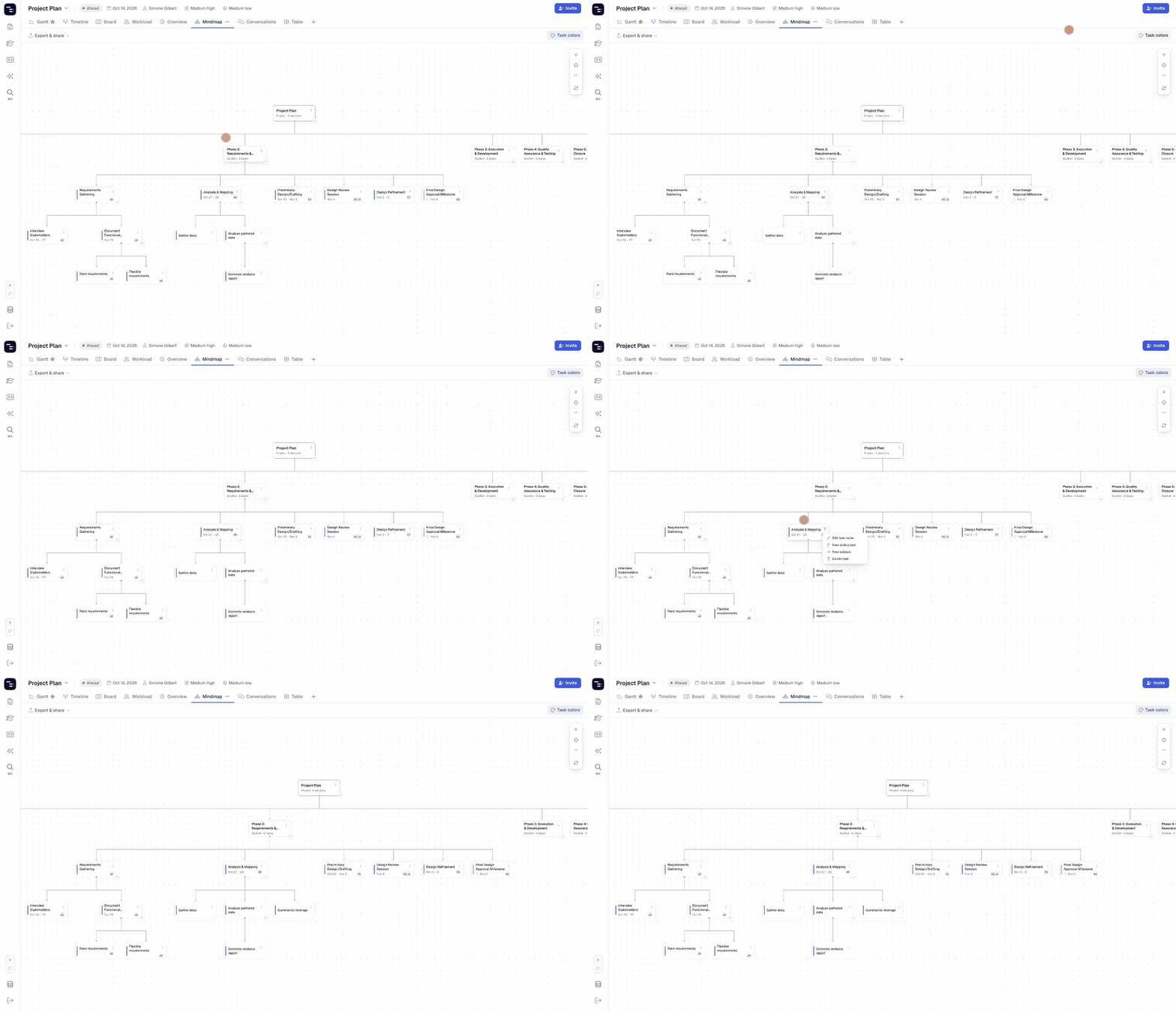
Mindmap View is a hierarchy view of your project. Each card on the map is a node:
- Project node — shows the project name and how many sections it has.
- Section nodes — show the section name and how many tasks it contains.
- Task and subtask nodes — show the task name, its dates and the assignee’s initials.
Task cards keep the color strip of the task’s color, so the status colors and any custom colors you use in the Gantt chart are visible on the map too. Use the Task colors button in the top-right corner to show or hide them.
Mindmap View works on the same live data as every other view: any change you make here is reflected instantly in Gantt, Table, Board and the rest of your views.
🎯 How to Open Mindmap View
- Open your project in Instagantt.
- In the row of view tabs at the top of the project, click Mindmap.
- If you don’t see the Mindmap tab, click the + button at the end of the view tabs and tick Mindmap to add it to the project.
Learn more about adding, removing and ordering view tabs in our Customize Views guide.
🧭 Navigating the Mindmap
- Pan — click and drag on an empty area of the canvas to move around large projects.
- Zoom — use the + and – buttons in the top-right corner to zoom in and out.
- Re-center — click the target button between + and – to bring the map back to its starting position.
- Toggle orientation — click the round-arrows button below the zoom controls to switch the layout. By default the project sits at the top and branches spread out sideways; toggle it to put the project on the left and stack the branches vertically. Click it again to switch back. Everything else works the same way in either orientation.
- Collapse and expand — click the small arrow under any node to hide or show its children. This is useful to focus on one section at a time.
- Open a task — click a task card to open its task details pane on the right, where you can edit dates, assignees, subtasks, dependencies and comments.
✏️ Editing Your Project from the Mindmap
Every node has a ⋮ menu that lets you change the structure of your project without leaving the map:
Task and subtask nodes
- Edit task name
- New sibling task — adds a task at the same level
- New subtask — adds a subtask under the selected task
- Delete task
Section nodes
- Edit section name
- New sibling section
- New task below — adds a task inside the section
- Delete section
Because Mindmap View is fully synchronized with the rest of Instagantt, new tasks created on the map can be scheduled immediately in Gantt or Timeline View.
📌 Summary
Mindmap View turns your project plan into a clear visual hierarchy. It helps you:
- Understand how sections, tasks and subtasks relate
- Present the scope of a project in a simple, visual way
- Restructure work quickly with node menus
- Jump into any task’s details with a single click
🚀 See the Big Picture of Every Project
Open the Mindmap tab in your next project and explore your plan as a connected map of work — then switch back to Gantt to schedule it.
❓ Frequently Asked Questions (FAQ)
Is Mindmap View available in Instagantt for Asana?
No. Mindmap View is currently available only in Instagantt Standalone.
Do changes in Mindmap View affect my Gantt chart?
Yes. All views share the same project data, so new tasks, renamed items and deleted items are reflected everywhere instantly.
Can I change task dates from the Mindmap?
Yes. Click the task card to open its details pane and edit the dates there.
Can I show the Mindmap vertically instead of horizontally?
Yes. Click the Toggle orientation button (the round arrows below the zoom controls) to switch between the top-down layout and a left-to-right layout where branches are stacked vertically. Click it again to switch back.
Why can’t I see the Mindmap tab in my project?
Views can be turned on and off per project. Click the + button at the end of the view tabs and tick Mindmap.