Search & Commands
Search & Commands is the fastest way to move around Instagantt. Open it from the left sidebar or with a keyboard shortcut, type a few letters, and jump straight to a project, switch views or run an action such as exporting, creating a baseline or turning on dark mode.
🧭 Table of Contents
- What Is Search & Commands?
- How to Open Search & Commands
- What Can You Find and Do?
- Keyboard Navigation
- Summary
- Frequently Asked Questions (FAQ)
🧠 What Is Search & Commands?
Search & Commands is a command palette: a single search box that finds projects across your workbooks and lists the actions available in the project you’re working on. Instead of opening menus one by one, you type what you need and press Enter.
🎯 How to Open Search & Commands
- Click the magnifying glass icon in the left sidebar (its tooltip reads Search & commands), or
- Press ⌘K on Mac or Ctrl + K on Windows.
Press Esc or the same shortcut again to close it.
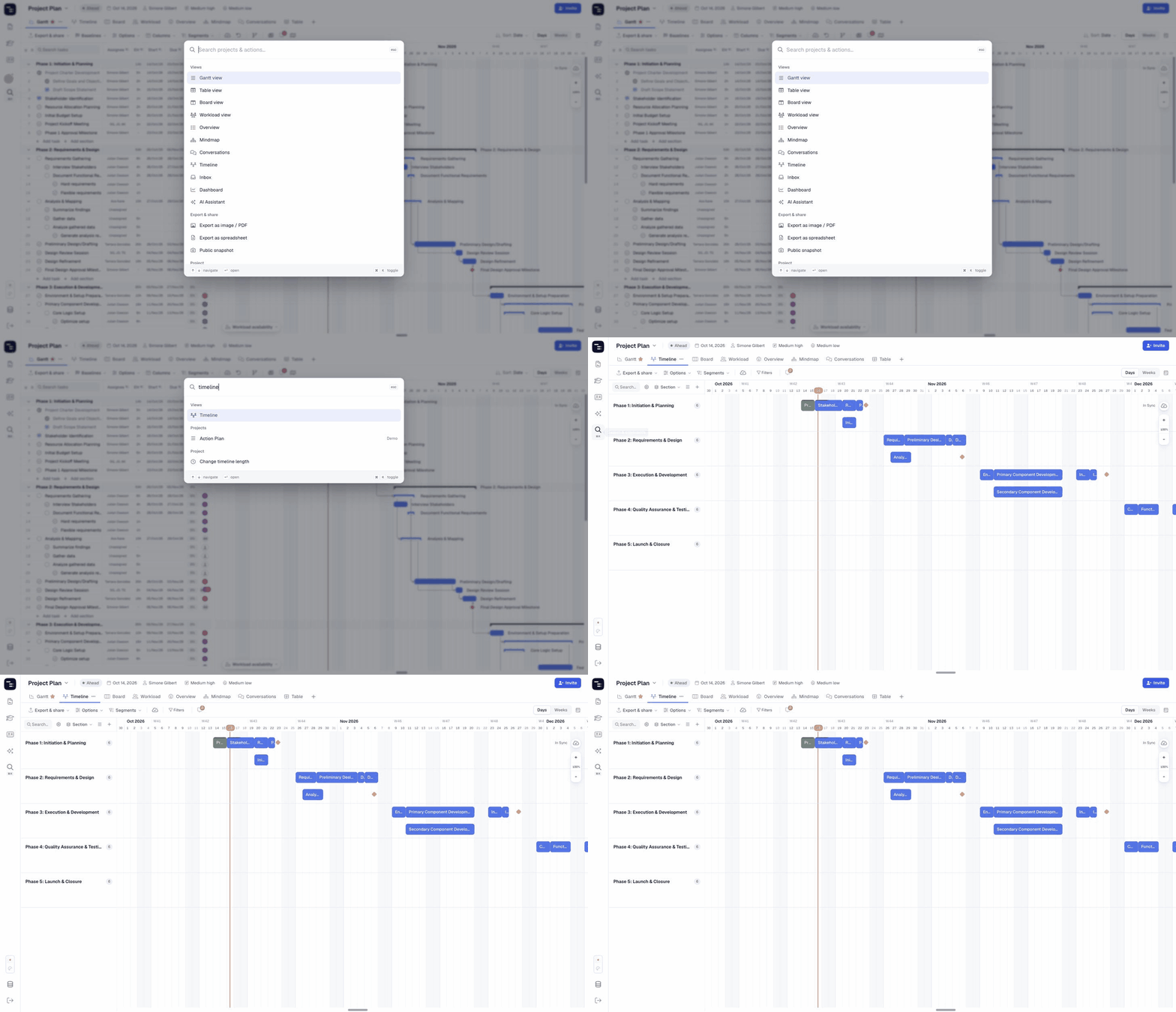
📋 What Can You Find and Do?
When the search box is empty, you’ll see every available command grouped by category. Start typing to filter them and to search your projects.
Projects
Projects from all your workbooks. Each result shows the workbook it belongs to on the right, so you can tell similar project names apart.
Views
Gantt view, Table view, Board view, Workload view, Overview, Mindmap, Conversations, Timeline, Inbox, Dashboard and AI Assistant.
Export & share
Export as image / PDF, Export as spreadsheet and Public snapshot.
Project
Working days, Change timeline length, Create baseline, Show / hide columns, Manage custom fields, Show critical path, Project settings and Duplicate project.
Workbook
New project, New project from template, Workbook settings, Members and New workbook (Instagantt Standalone).
App
Dark mode, Profile, Notification settings and Log out.
⌨️ Keyboard Navigation
- ↑ / ↓ — move through the results
- Enter — open the selected project or run the selected command
- ⌘K — open or close Search & Commands
- Esc — close without doing anything
📌 Summary
Search & Commands puts all of Instagantt one shortcut away. Use it to:
- Jump to any project in any workbook
- Switch views without reaching for the mouse
- Run common actions like exports, baselines and duplicates
- Change app settings such as dark mode
🚀 Move Through Instagantt at the Speed of Typing
Press ⌘K, type what you need and press Enter. Once you try it, you won’t go back to clicking through menus.
❓ Frequently Asked Questions (FAQ)
What’s the keyboard shortcut for Search & Commands?
⌘K on Mac, or Ctrl + K on Windows.
Does it search projects in other workbooks?
Yes. Project results include every workbook you have access to, and each result shows its workbook name.
Can I search for tasks?
Search & Commands finds projects, views and actions. To find a task inside a project, use the Search tasks box at the top of the task list.
Can I turn on dark mode from here?
Yes. Type “dark” and choose Dark mode. You can also use the light/dark switch at the bottom of the left sidebar.