Customize Views
Every team works differently. Some projects live in the Gantt chart, others in a Board or a Timeline. With Customize Views you decide which view tabs each project shows, in which order they appear, and which setup new projects in your workbook start with.
🧭 Table of Contents
- What Can You Customize?
- How to Add or Remove Views
- How to Reorder View Tabs
- Workbook Defaults and Resetting Views
- Setting the Default View
- Summary
- Frequently Asked Questions (FAQ)
🧠 What Can You Customize?
The view tabs at the top of a project (Gantt, Table, Board, Workload, Overview, Mindmap, Conversations and Timeline) can be configured per project:
- Which views are visible — hide the views your team doesn’t use and add new ones such as Mindmap, Conversations or Timeline.
- The order of the tabs — put the views your team uses most first.
- The workbook default — save a setup so new projects in the workbook start with the same views.
- The default view — choose which view opens first when someone loads the project.
Gantt View is always available and can’t be hidden.
➕ How to Add or Remove Views
- Open your project.
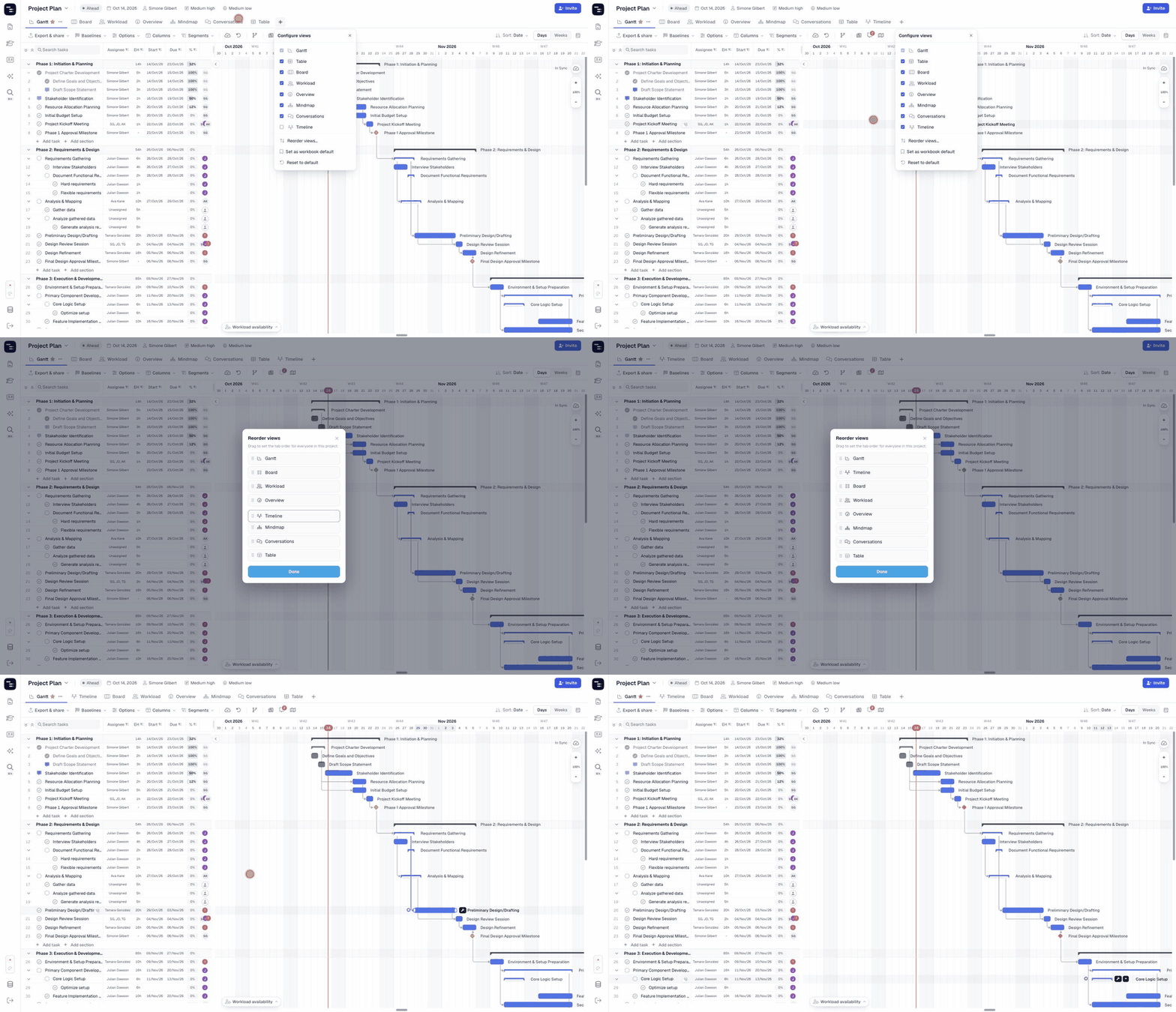
- Click the + button at the end of the view tabs to open Configure views.
- Tick a view to add its tab, or untick it to hide the tab.
- Changes apply immediately — the tab appears or disappears as soon as you click.
Hiding a view never deletes data. All views share the same tasks, so you can turn a view back on at any time.
↕️ How to Reorder View Tabs
- Click the + button at the end of the view tabs.
- Choose Reorder views….
- Drag views by their handle (⋮⋮) into the order you want.
- Click Done.
Anyone in the project can reorder the tabs. The new order is saved for everyone in the project, so the whole team sees the same tabs in the same order.
🗂 Workbook Defaults and Resetting Views
At the bottom of the Configure views menu you’ll find two more options:
- Set as workbook default — saves the current project’s visible views and their order as the default for the workbook. Any workbook member can use it.
- Reset to default — returns the current project to the workbook default setup.
This is the easiest way to keep a consistent set of views across all the projects in a workbook.
⭐ Setting the Default View
The default view is the tab that opens first when anyone loads the project. It’s marked with a star (★) next to its name. You can change it in two ways:
- Open the view, click the ··· button next to its tab name and choose Set as default view.
- Click the arrow next to the project name, go to Set default view and pick a view.
Read more in our Default View guide.
📌 Summary
Customize Views lets every project show exactly the views your team needs. You can:
- Add or hide view tabs from the + menu
- Reorder tabs for everyone in the project
- Save a workbook default and reset projects to it
- Choose the view that opens first
🚀 Make Every Project Open the Way Your Team Works
Set up your views once, save them as the workbook default, and give every new project the same focused workspace.
❓ Frequently Asked Questions (FAQ)
Does hiding a view delete any data?
No. Views are different ways of looking at the same tasks. Hiding a view only removes its tab.
Can I hide Gantt View?
No. Gantt View is always available in every project.
Is the tab order personal or shared?
Shared. The order set in Reorder views applies to everyone in the project.
What does Reset to default do?
It replaces the project’s visible views and tab order with the workbook default.
Is Customize Views available in Instagantt for Asana?
No. Customize Views is currently available only in Instagantt Standalone.
How do I add Mindmap, Conversations or Timeline to a project?
Click the + button at the end of the view tabs and tick the view you want.